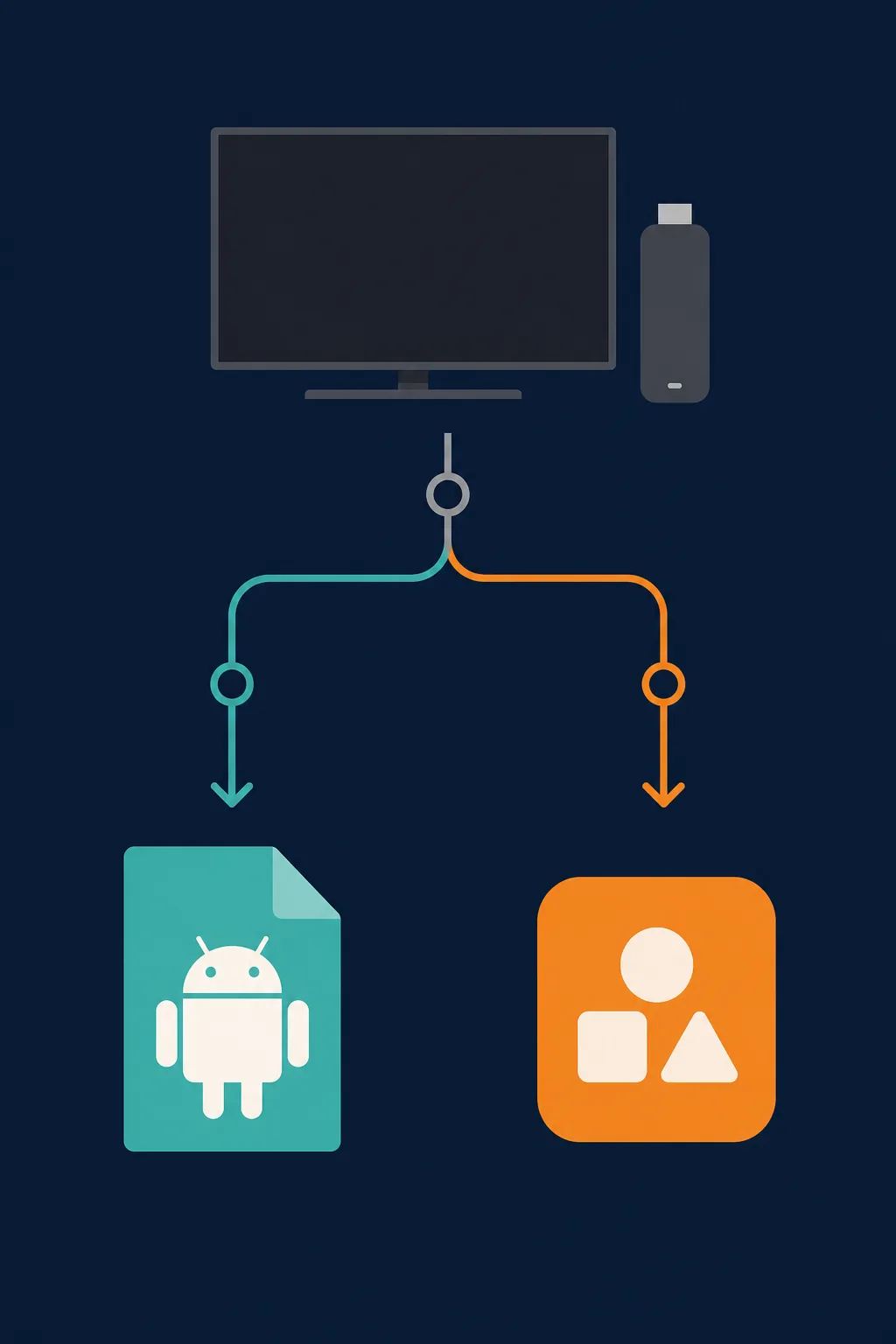
The first Fire TV APK decision is platform compatibility: identify the operating system before choosing a sideloading method.
Quick answer
First identify the exact Fire TV model and whether it runs an Android-based Fire OS environment. If it does, download an APK from a source you can inspect, verify the package details, transfer it or use Downloader, allow installation only for the source app, then revoke that permission. If the device uses a different platform or the file source cannot be verified, do not force an APK install. The existing DeepCine Fire TV page is for the branded app route; this page covers the generic device decision.
What this guide covers
- 1. Check Whether Your Fire TV Supports Android APK Files
- 2. Choose a Fire TV APK Install Method
- 3. Verify the APK Before You Install It
- 4. Install an APK on Fire TV Step by Step
- 5. Fix Common Fire TV APK Install Problems
- 6. Where the DeepCine Fire TV Page Fits
- How to Install APK on Fire TV FAQ
- Official references checked
1. Check Whether Your Fire TV Supports Android APK Files
Fire TV is a device family, not a single hardware configuration. Before searching for an APK, open the device information screen and note the model, software version, storage, and network status. An APK is an Android package, so an Android-based Fire OS device and a non-Android Fire TV platform should not be treated as interchangeable.
Do not infer support from a product name such as Fire TV Stick 4K. Check the exact model and current software documentation. If the device does not expose a compatible Android installation path, use an app-store listing, browser route, casting, or another supported device instead of downloading random files.
| What you find | APK implication | Best next action |
|---|---|---|
| Android-based Fire OS device | An APK route may be possible, subject to architecture, Android requirement, source, and permissions | Continue to source and file checks |
| A newer non-Android platform | An Android APK is not automatically a compatible install package | Use the supported store, browser, or external Android device |
| Unknown model or unclear software | Every install instruction is provisional | Identify the model before downloading anything |
| Low storage or unstable network | Downloads can be incomplete or fail during installation | Free space and stabilize the connection first |
2. Choose a Fire TV APK Install Method
There is no universally safest button. Local transfer gives you the most control because the APK can be downloaded and inspected on a phone or computer first. A Downloader-style route is convenient when typing with a remote is acceptable, but a short code or redirect can hide the final destination. ADB is useful for technical users who want a repeatable computer-led workflow, but it adds setup and should not be used as a shortcut around source verification.
Use one method at a time and keep a note of the source, file name, version, and installation date. That record makes it easier to remove the right package or explain a crash later. If a guide tells you to install several helper apps, unknown profiles, browser extensions, or an EXE before the APK, leave the flow and reassess the source.
| Method | Best when | Main risk |
|---|---|---|
| Phone or computer transfer | You want to inspect the file before it reaches the TV | USB, network, or file-manager compatibility can vary |
| Downloader or TV browser | You need a direct on-device download and can verify the final URL | Short links, redirects, ads, and wrong files are harder to inspect on a TV |
| ADB from a computer | You are comfortable with developer options and device pairing | A command can install the wrong package quickly if the file was not checked |
| Unknown third-party installer | Almost never a good reason | Extra permissions, repacked files, and forced redirects |
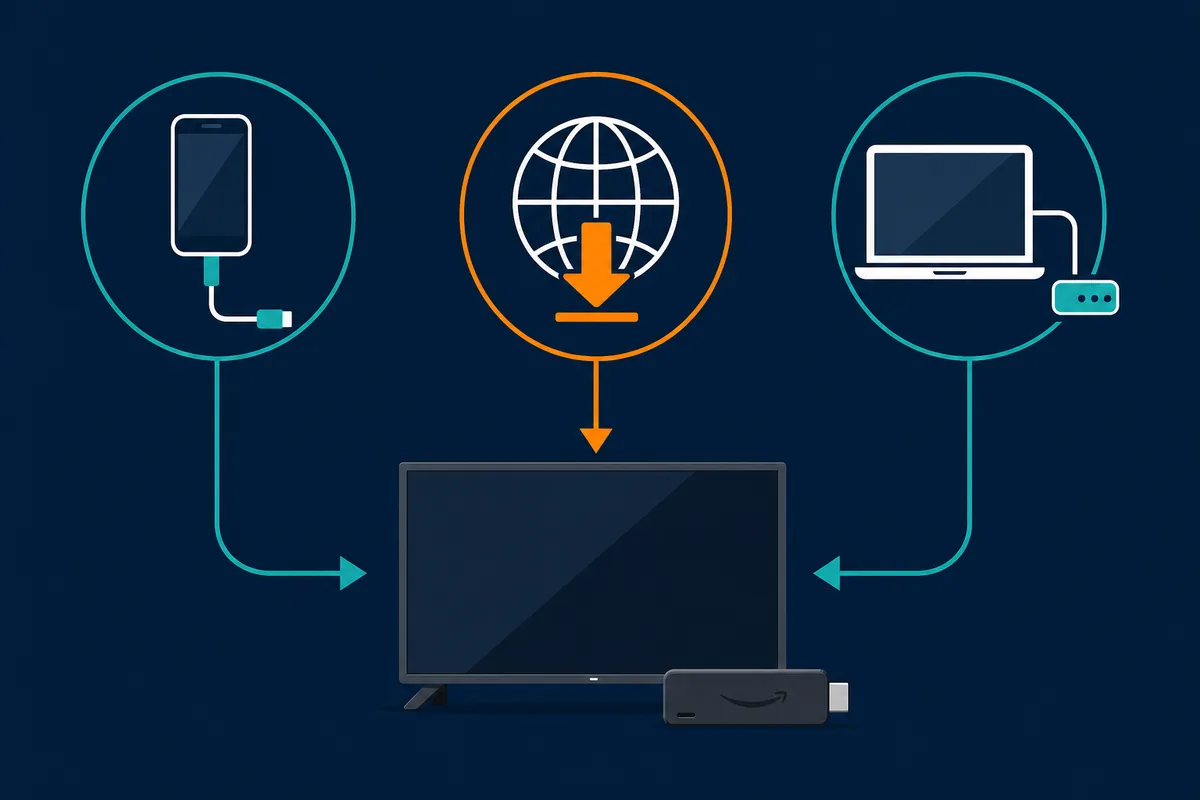
Local transfer, Downloader, and ADB solve different workflow problems; none removes the need to verify the APK.
3. Verify the APK Before You Install It
A download page is not proof that the file is official, current, or safe. Before moving an APK to Fire TV, compare the app name, package file name, version, approximate size, Android requirement, update date, and source identity. A mismatch does not automatically prove malware, but it is enough reason to stop and find a clearer source.
Treat no-ads, unlocked, premium, and free-content claims as risk signals rather than quality signals. Do not assume a file is safe because a search result uses the product name. Scan the file on the phone or computer that downloaded it, review the permissions after installation, and keep unknown-app installation disabled when the setup is finished.
- Open the source page and confirm the final download destination instead of trusting a short link.
- Compare the file name, package identity when available, version, size, Android requirement, and update date.
- Reject EXE, MSI, ZIP bundles, browser extensions, VPN offers, and extra installers presented as part of an APK download.
- Scan the downloaded file on a phone or computer before transferring it to the TV.
- Grant unknown-app permission only to the browser, Downloader, or file manager you are actively using.
- After installation, revoke the permission, remove old packages, and keep a note of what you tested.
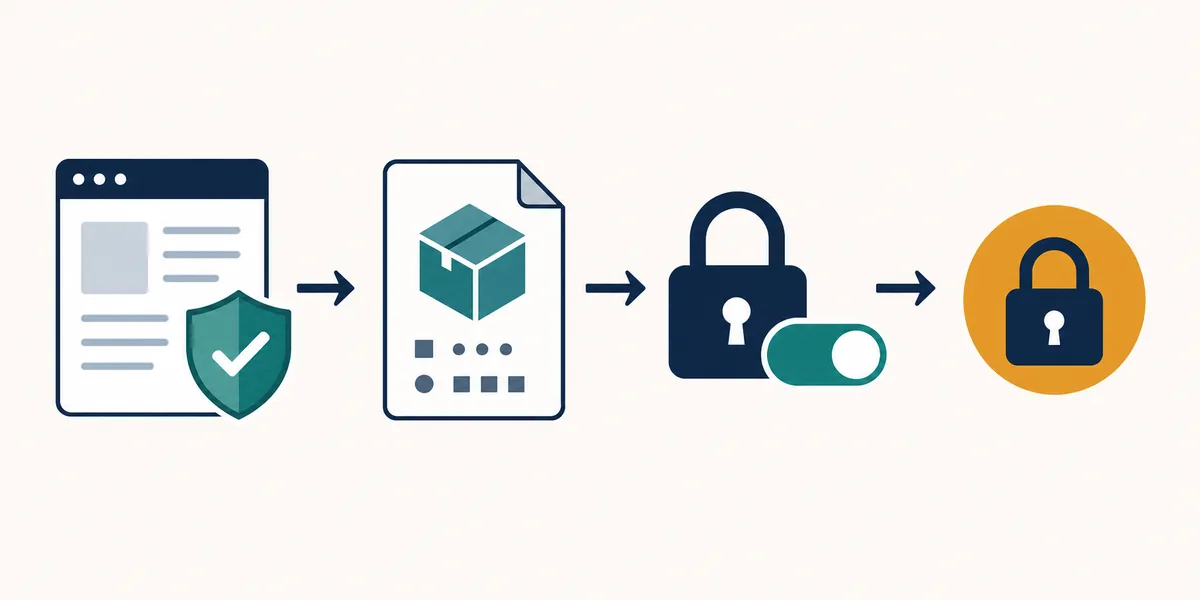
A safer Fire TV APK workflow keeps source checks, file checks, permission control, and cleanup in the same loop.
4. Install an APK on Fire TV Step by Step
The menu wording changes between Fire OS releases and device models, so use the device screen as the source of truth. The sequence below is deliberately conservative: identify, verify, transfer, install, and clean up. It is not a promise that every APK will work, and it does not turn a third-party listing into an official release.
If the device uses a non-Android platform, stop before the permission step. If the APK requires a newer Android version, a different CPU architecture, or a phone-only interface, the correct fix is compatibility research rather than repeated downloads.
- Identify the exact Fire TV model and software environment, then confirm that an Android APK path is appropriate.
- Download the APK on a device where you can inspect the source page, file details, and scan result.
- Move the file by USB, local network, or a verified Downloader route; use ADB only if you understand device pairing and commands.
- Allow installation from the specific source app only when Fire TV requests it, then install the file you already checked.
- Open the app, test remote focus, screen fit, playback, subtitles, and exit behavior before relying on it.
- Turn off the source app permission, delete leftover installers or old packages, and record the tested version and source.
5. Fix Common Fire TV APK Install Problems
Most Fire TV APK failures are not solved by trying more mirrors. Start by classifying the failure: the file cannot be downloaded, the package cannot be parsed, the app installs but is hidden, or playback and remote navigation fail. Each category points to a different check.
Do not disable every security setting or install a modified package just to make one step succeed. If the file repeatedly fails after a source, architecture, storage, and Android-version check, treat that as a compatibility or source problem and stop.
| Symptom | Checks to make | Stop point |
|---|---|---|
| Download stops or file size changes | Connection, storage, final URL, and file hash or size | Do not install an incomplete file |
| Package parse or install error | Android requirement, CPU architecture, file integrity, and device platform | Do not keep retrying random versions |
| App installs but is not visible | Launcher compatibility, app category, and device restart | Use the device-supported route if the package is phone-only |
| Remote control is awkward | Landscape layout, focus order, back button, and screen scaling | Remove it if basic navigation is unusable |
| Playback or subtitles fail | App-side source availability, permissions, network, and legality | Do not treat a successful install as a content guarantee |
6. Where the DeepCine Fire TV Page Fits
This generic guide is for the device-level question: can an APK be installed on this Fire TV, which method fits, and what should be checked first? The existing DeepCine for Fire TV guide has a narrower brand boundary. It covers the DeepCine app route, Downloader and transfer choices, remote-control tests, troubleshooting, and the limits of a third-party APK listing.
Keep the two intents separate. Use this page for platform and install-method decisions, then move to the DeepCine page only if you have already decided that the app, source, device, and local rules are appropriate. For modified packages, use the MOD APK safety guide instead of treating an unlocked claim as a normal install.
- Generic Fire TV APK install question: use this page.
- DeepCine on Fire TV or Firestick: use the branded Fire TV guide.
- Android TV, Google TV, or TV Box rather than Fire TV: use the Smart TV guide.
- No-ads, unlocked, or premium APK claim: use the MOD APK safety guide and avoid unverified direct files.
- No verifiable source, unclear platform, or repeated compatibility failure: stop instead of escalating the install.
How to Install APK on Fire TV FAQ
Official references checked
- Amazon Fire TV device specifications — Check the exact model, operating-system context, and device capabilities before using an APK instruction.
- Amazon Fire TV ADB connection guidance — Use ADB as a technical transfer option, not as a substitute for source or package verification.
- Google Play Protect — Use platform security features and review warnings when handling apps from outside an app store.
Ready to check a DeepCine Fire TV route?
Use the branded guide only after the platform and source checks above. It keeps DeepCine-specific Downloader, transfer, remote-control, and troubleshooting notes separate from this general Fire TV APK guide.
Related DeepCine guides
- DeepCine for Fire TV — Brand-specific Firestick install, transfer, remote-control, and troubleshooting notes
- DeepCine for Smart TV — Android TV, Google TV, TV Box, and non-Android TV boundaries
- DeepCine MOD APK safety guide — No-ads, unlocked, modified-package, and mirror-risk checks
- DeepCine APK download guide — General version, file-size, Android requirement, and source checks