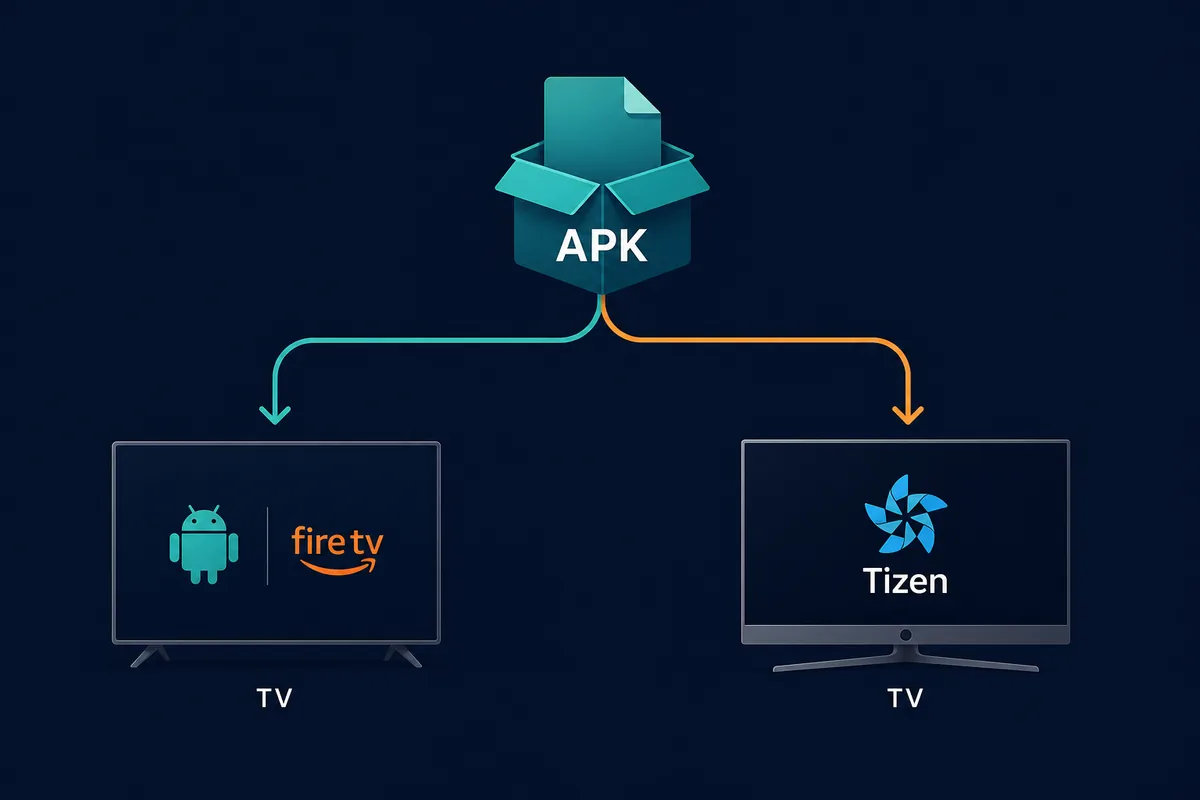
TizenTube searches split into two routes: an Android-style Cobalt APK path and a Samsung Tizen/TizenBrew path.
Quick answer
For Android TV, Google TV, Fire TV, and many Android TV Boxes, investigate TizenTube Cobalt and verify the exact file before sideloading. For Samsung Smart TV, do not use a normal Android APK path; check Tizen-specific tooling instead. A TizenTube Downloader code is only useful when the source and final package can still be verified.
What this guide covers
- What TizenTube APK, TizenTube Cobalt, and Tizen Tube Mean
- Choose the Right Device Path Before Downloading
- Safety Checks for TizenTube Cobalt APK
- Install Logic for Android TV and Fire TV
- Why Samsung Tizen Is Not a Normal APK Install
- Troubleshooting: When TizenTube APK Fails
- Official Sources and Related TV Guides
- TizenTube APK FAQ
What TizenTube APK, TizenTube Cobalt, and Tizen Tube Mean
The phrase TizenTube APK can mean an Android TV package, TizenTube Cobalt, a Samsung Tizen route, or a broad download search. Use TizenTube Cobalt for Android TV and Fire TV research, keep TizenBrew-style instructions under the Samsung Tizen boundary, and treat a generic TizenTube download page as unverified until the device and source are clear.
The clean way to read the query is by device. Android TV and Fire TV are APK-capable platforms, so TizenTube Cobalt is the term to investigate. Samsung Tizen, LG webOS, and Roku do not install Android packages directly, so a page promising a one-click APK for those systems is usually confusing the platform boundary.
| Search phrase | Likely intent | Best action |
|---|---|---|
| tizentube apk | Android-style TV package | Check whether the device is Android TV, Google TV, Fire TV, or Android TV Box |
| tizentube cobalt apk | APK route for Android-based TV devices | Verify the release source and sideload carefully |
| tizentube samsung tv | Samsung Tizen route | Research TizenBrew/Tizen package steps, not APK sideloading |
| tizentube firestick | Fire TV sideloading | Use a Fire TV APK safety workflow |
| tizentube download | Broad download intent | Avoid mirrors until the exact device path is clear |
Choose the Right Device Path Before Downloading
The most important decision happens before any file is downloaded. A Firestick, Chromecast with Google TV, Android TV Box, or Android TV television can usually sideload APK files when settings allow it. Samsung Tizen televisions use a different app model, and the original TizenTube project targets that ecosystem through Tizen tooling rather than Android package installation.
This distinction also helps DeepCine users. If you came from a DeepCine APK guide, the APK logic is familiar for Android-based devices, but it does not transfer to Samsung Tizen or LG webOS. When the device cannot run APK files, use an Android player over HDMI instead of forcing a package meant for another platform.
| Device | TizenTube fit | APK? | Notes |
|---|---|---|---|
| Android TV / Google TV | TizenTube Cobalt | Yes | Sideload only after source and permission checks |
| Fire TV / Firestick | TizenTube Cobalt | Yes | Downloader or transfer method, then remote-control testing |
| Android TV Box | TizenTube Cobalt | Yes | Check Android version, storage, and CPU architecture |
| Samsung Tizen TV | TizenTube via Tizen tooling | No | Look for TizenBrew-style instructions, not APK files |
| LG webOS / Roku | Not the normal route | No | Use official app store options or an external Android player |
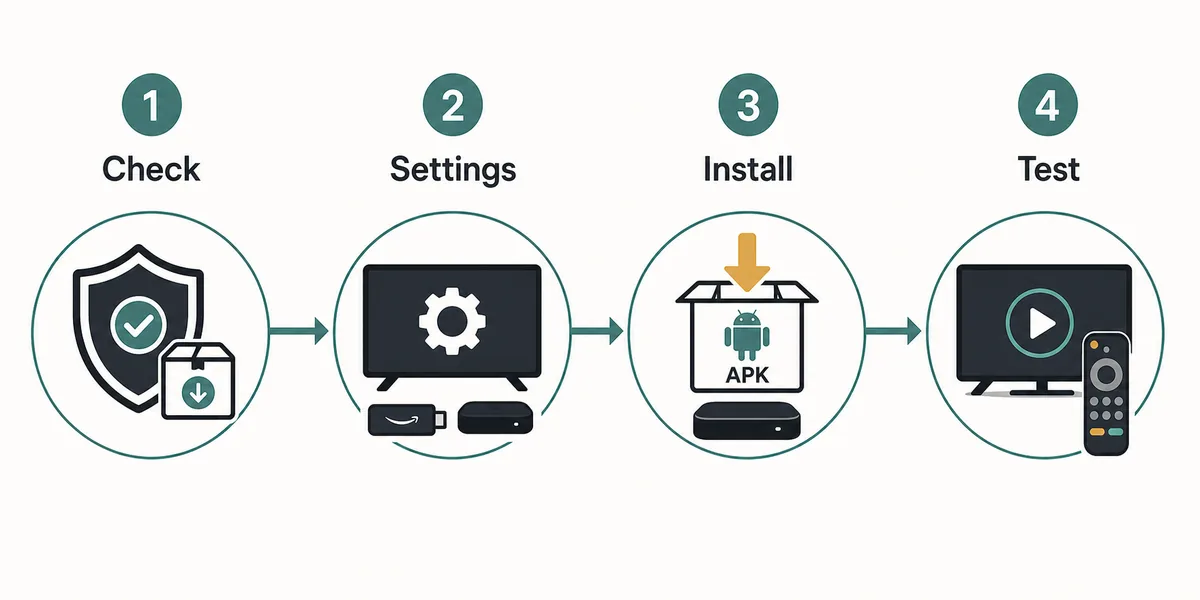
For Android-based TV devices, the practical flow is source check, settings, package install, and remote playback testing.
Safety Checks for TizenTube Cobalt APK
Because TizenTube Cobalt is often discussed outside normal TV app stores, source verification matters. Prefer official project pages or release channels you can inspect. Compare the file name, version, update date, and package context before sideloading. A page that bundles a downloader, browser extension, VPN prompt, or unrelated installer should be rejected.
Unknown-app installation should stay narrow. Allow installation only for the browser, Downloader, or file manager used for this session, then disable that permission after install. If Play Protect or your TV warns about the file, pause and recheck the source rather than clicking through by habit.
- Confirm the exact device platform before downloading.
- Prefer official project or developer-linked release sources.
- Compare file name, version, and update date before installing.
- Avoid ZIP bundles, EXE files, fake update buttons, and forced VPN pages.
- Disable unknown-app permission after the package is installed.
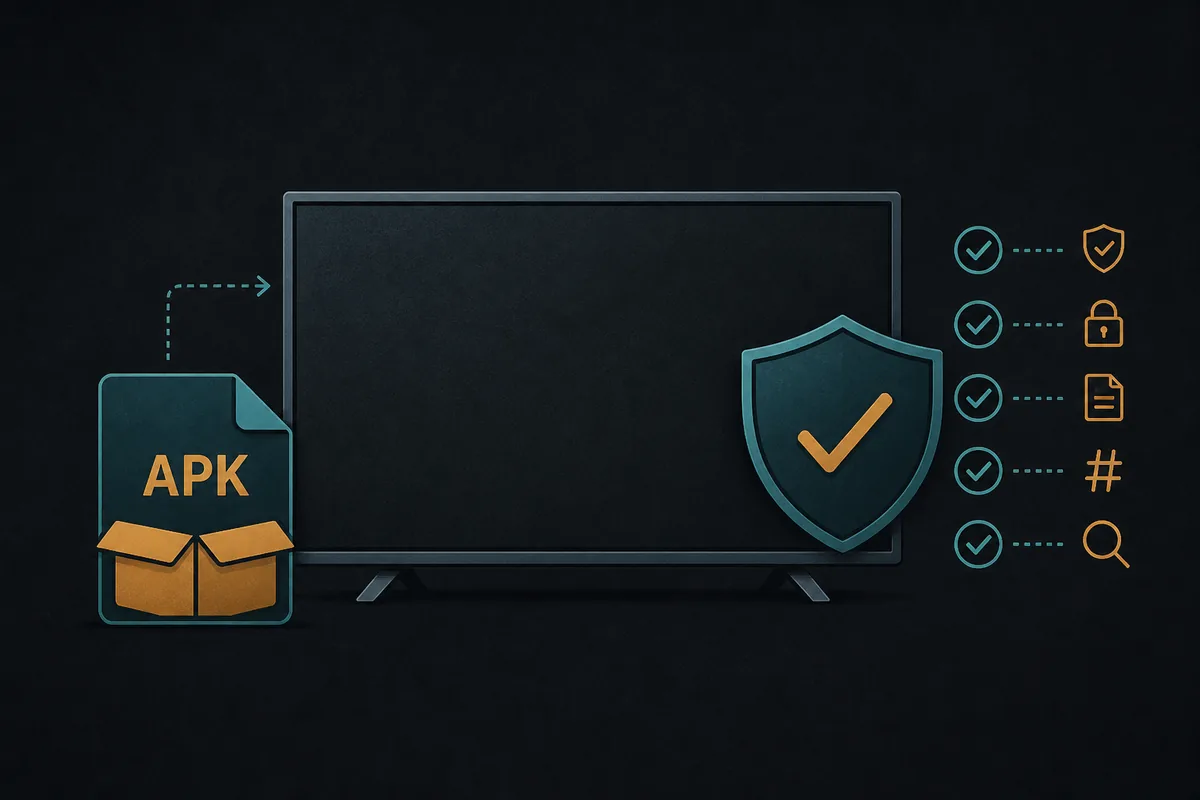
APK safety is mostly about rejecting the wrong source before it reaches the TV.
Install Logic for Android TV and Fire TV
On Android TV or Google TV, a file manager or browser may open the APK after you grant source-specific installation permission. On Fire TV, Downloader is common, but the same cautions apply: verify the destination, avoid shortened links when possible, and remove the install permission afterward.
After installation, do not judge success by the first launch only. Test remote focus, search, video playback, subtitles, quality controls, back-button behavior, and whether the app remains visible after a restart. A TV app that needs a mouse for basic navigation is not a reliable couch setup.
- Verify that the TV device is Android-based or Fire OS-based.
- Download from a source you can inspect, preferably on a phone or computer first.
- Transfer the APK or use a TV browser/Downloader with the full URL.
- Grant unknown-app permission only to the source app used for installation.
- Open the app, test remote navigation and playback, then disable the permission.
- Delete the APK package if storage is limited and the app works.
Why Samsung Tizen Is Not a Normal APK Install
Samsung Smart TVs run Tizen, not Android. That means an Android APK is not the native package format for the television. The original TizenTube route is tied to Samsung Tizen development and community tooling such as TizenBrew. Those steps are more technical than installing an APK on a Firestick and may depend on developer mode, network setup, or project-specific instructions.
If your goal is simply to watch on a Samsung TV without developer tooling, an external Android TV player is often cleaner. Connect a Chromecast with Google TV, Android TV Box, or Fire TV device by HDMI, then follow the Android-style APK safety workflow on that external device instead of trying to convert the Samsung TV itself into an Android target.
- Do not rename an Android APK and expect a Samsung TV to install it.
- Check whether the guide mentions TizenBrew, Samsung developer mode, or Tizen packages.
- Use an external Android player if you want a simpler APK workflow.
- Avoid pages that promise Samsung APK installs without explaining the Tizen boundary.
Troubleshooting: When TizenTube APK Fails
A parse error usually means the APK is incomplete, incompatible with the device Android version, or not built for that hardware. An 'app not installed' message can point to old package conflicts, low storage, or a mismatched build. On Fire TV, missing launcher icons are common for sideloaded apps and should be checked in Settings > Applications before reinstalling anything.
For Samsung Tizen, APK failure is expected because APK is the wrong package type. Switch to Tizen-specific instructions or use an external Android device. Repeatedly downloading random variants rarely solves a platform mismatch and increases the chance of installing something unsafe.
| Problem | Likely cause | Better response |
|---|---|---|
| Parse error | Bad download, wrong Android version, or incompatible build | Recheck release source and device Android version |
| App not installed | Package conflict or low storage | Remove old copies and free storage before one clean retry |
| Remote cannot select controls | Phone-first layout or poor TV focus | Do not rely on mouse-only navigation |
| Samsung TV rejects APK | Tizen is not Android | Use TizenTube/TizenBrew route or external Android hardware |
| Security warnings | Unknown or risky package | Stop and verify before continuing |
Official Sources and Related TV Guides
Use official project information for the TizenTube side and device-specific guides for the APK side. The most useful internal companion pages are the DeepCine Smart TV guide for Android TV boundaries, the Fire TV guide for Downloader-style sideloading, and the DeepCine alternatives page for Samsung TV or external player decisions.
TizenTube APK FAQ
Compare this with your DeepCine TV setup
If your device can install Android APK files, the same source-check and remote-test habits apply to DeepCine, TizenTube Cobalt, and other TV APK searches. If your device is Samsung Tizen or LG webOS, use the compatibility guide before downloading anything.
Related TV and APK guides
- DeepCine for Smart TV - Android TV, Google TV, and TV Box compatibility checks
- DeepCine for Fire TV - Downloader, Firestick permissions, and remote-control tests
- DeepCine APK download guide - General APK version, file, and safety notes
- DeepCine Alternatives - Samsung Tizen, iPhone, TV Box, and legal streaming choices