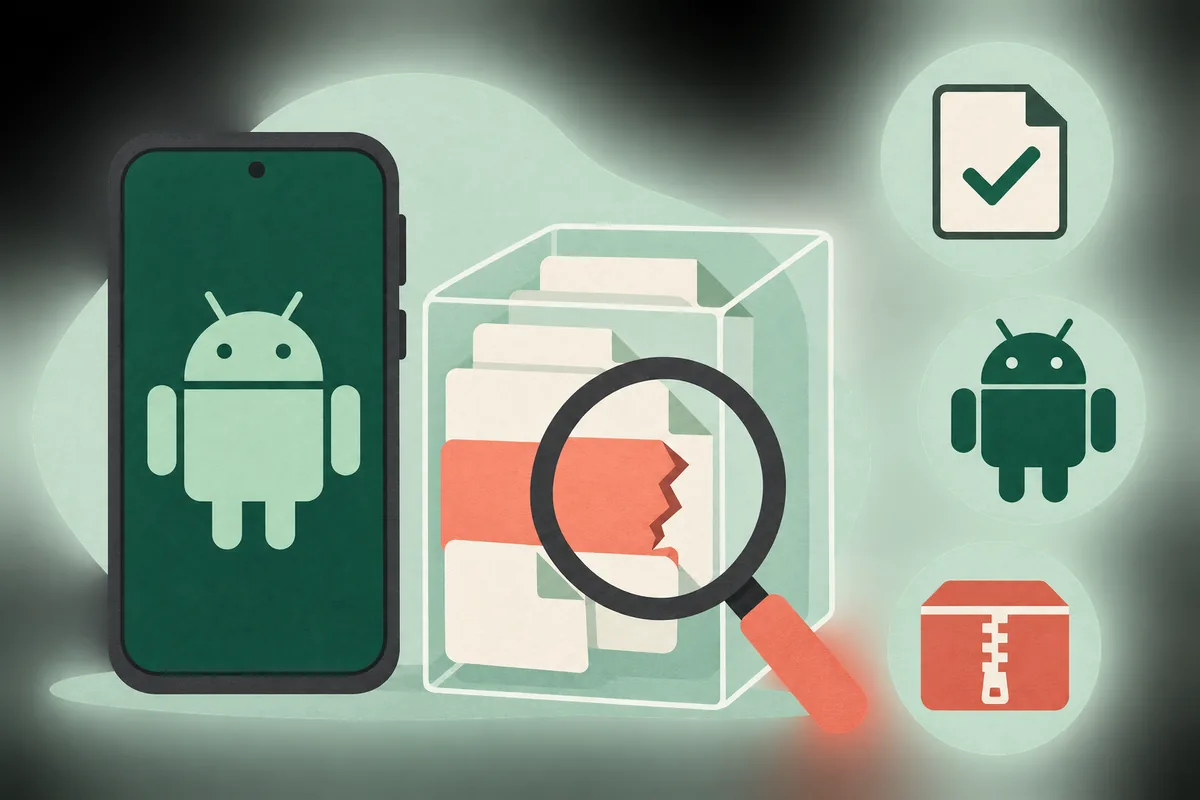
Treat a parse message as a prompt to inspect the file and device match, not as proof that one setting is wrong.
Quick answer
First stop repeated installs. Confirm that the file is an APK from a source you can identify, download it again over a stable connection, and compare the package's Android requirement and device architecture with your device. Also check whether the download is a split package that needs a compatible installer rather than a single-file tap. If the source or package identity is unclear, delete the file and do not lower device protections to force it through.
What this guide covers
- What an Android APK parse error means
- Check the APK file before changing settings
- Check Android compatibility and package type
- Fix an Android APK parse error in a safe order
- Use ADB only when you need a clearer install result
- A parse error is different from other install failures
- When to stop and ask the publisher
- Android APK parse error FAQ
- Official reference
What an Android APK parse error means
Android must read the package structure and check whether the app can be installed on the device. A message such as "There was a problem parsing the package" is broad: it can appear when a file is incomplete, malformed, packaged for a different Android environment, or handled with the wrong installer. The wording alone cannot tell you which explanation applies.
Do not treat every Android APK parse error as a request to enable unknown-app installs. That permission controls which source app may start an installation; it does not repair a damaged APK or make an incompatible package compatible. Start with evidence you can check: the exact file, where it came from, the Android version, and whether the package is intended for this device.
Separate a transfer failure, a package-read failure, a compatibility warning, and an app that closes after installation. Each needs a different check.
Check the APK file before changing settings
Look at the actual saved file, not only the download page. Confirm that its name ends in .apk when the source says it is a single APK, that the file has a plausible non-zero size, and that the browser or file manager reported a completed download. A web page saved with an APK-looking name, an HTML error response, or a partial transfer will not become installable after you retry the same file.
Compare a checksum or size only when the publisher supplies it for that exact release. If no value is published, download once from the same identified source over a stable connection; switching mirrors obscures which package failed.
- Record the source page and the final file name before opening the installer.
- Wait for the download to finish and confirm the file is not empty or obviously truncated.
- Compare a published checksum or size only when the source supplies one for the same file.
- Do not install a file that unexpectedly ends in .zip, .xapk, .apkm, .apks, .html, or another format the source did not explain.
- Delete duplicate copies after identifying the one file you intend to test.
Check Android compatibility and package type
An APK can be intact and still not fit the device. Check the app's stated minimum Android version against the version installed on the phone, tablet, TV box, or streaming device. A package built for a newer Android release may be rejected by an older system. Do not assume that changing a setting can remove that requirement.
Some releases are distributed as a set of split APK files or through an app bundle. If the source describes several files for one release, installing only one part may fail or leave the package incomplete. Use a trusted installer that explicitly supports that package format, or return to the publisher's documented install route. A single-file APK installer cannot combine files it was not given.
Architecture can matter when a package includes native code. Check the publisher's compatibility notes or a trusted device-information tool; do not guess from the model name or install several variants at random.
| What you find | Likely next check | Avoid |
|---|---|---|
| Android version is below the app requirement | Use a supported app version or a compatible device | Trying to bypass the stated minimum version |
| The release contains multiple split files | Follow the publisher's bundle or split-package instructions | Tapping one split as if it were a complete APK |
| The package names a different CPU architecture | Confirm the device architecture and publisher's supported variant | Installing random variants from unrelated mirrors |
| The source cannot explain the package or publisher | Stop and find a verifiable source | Disabling protections to force an unknown file |
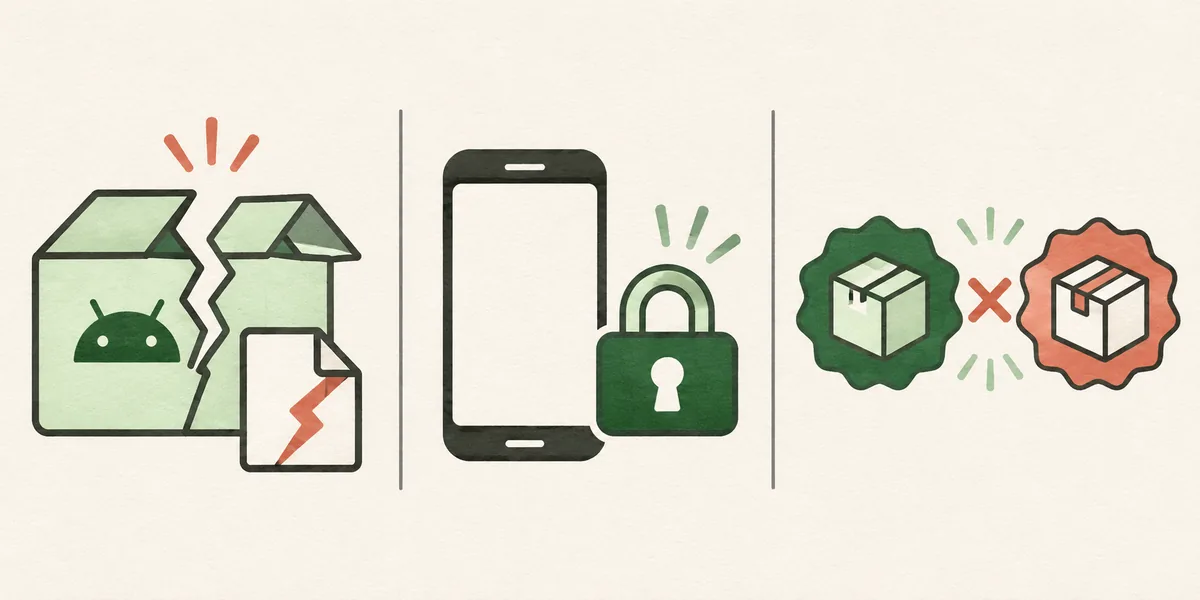
Different failure signals call for different checks; the parse message by itself does not identify the cause.
Fix an Android APK parse error in a safe order
Make one controlled retry after the checks below. Keep the source and file details so you can stop when evidence points to a mismatch.
- Note the exact message, device model, Android version, and package name shown by the source.
- Delete only the incomplete or unverified copy, then download the same release again from its identified publisher over a stable connection.
- Compare the completed file with any publisher-provided checksum, size, Android requirement, and architecture information.
- Confirm whether the release is one APK or a split package; use its documented installer and never rename an archive to .apk.
- Retry once with the verified, compatible file. Record any specific warning instead of changing several settings together.
- If installation succeeds but launch fails, check the app's device requirements, permissions, and available storage.
- Remove unneeded installer files and revoke any temporary install permission granted to a browser or file manager.
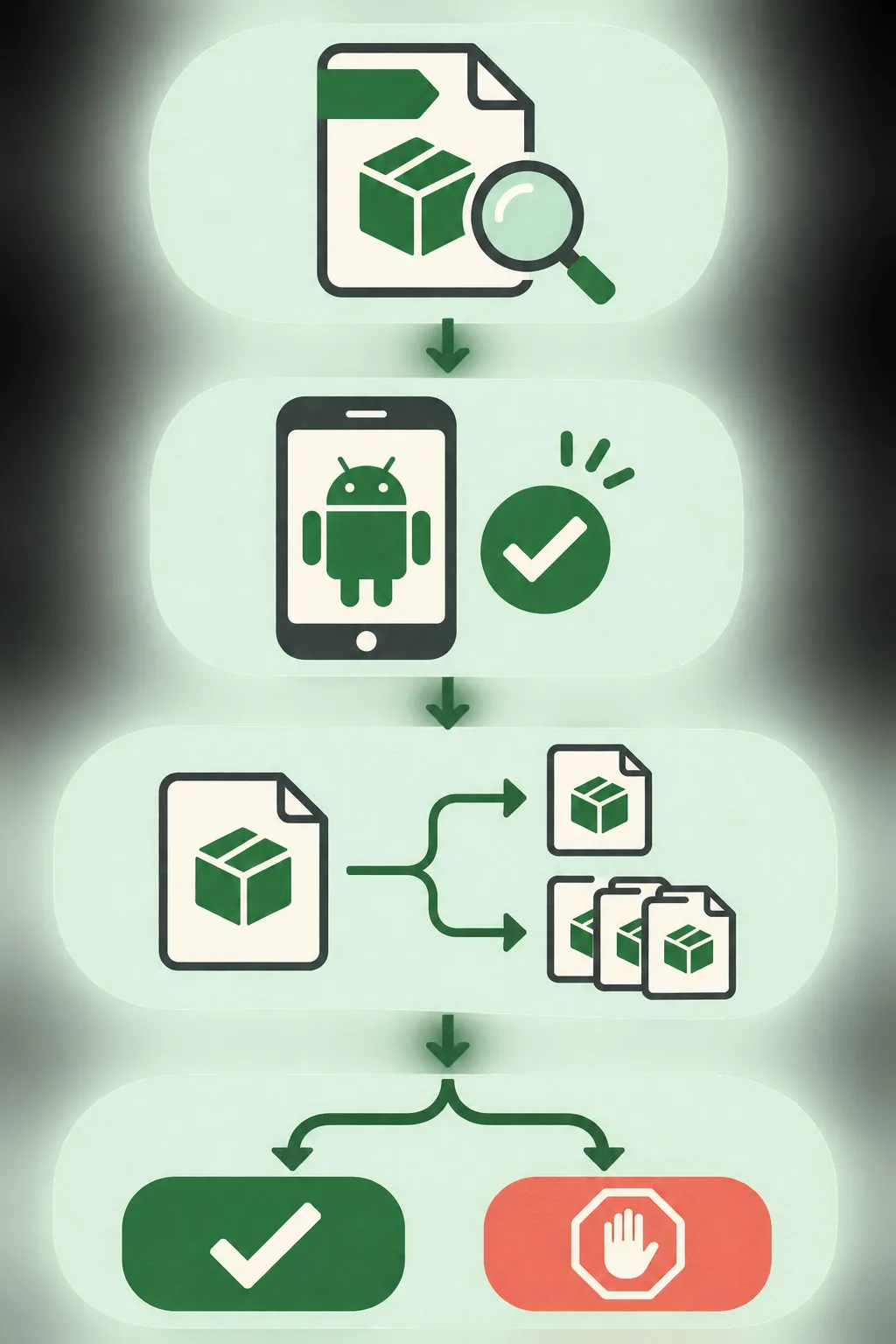
Move through one check at a time and stop when the source, file, or device match cannot be verified.
Use ADB only when you need a clearer install result
Android Debug Bridge (ADB) installs a local package from a computer to a connected Android device. For users who understand device authorization, its output may clarify an install failure. ADB is not a safety scanner and does not prove that a package is trustworthy.
Use it only with a verified file and an authorized device. Do not enable debugging to bypass an unclear warning. Android's official guide documents ADB setup and install commands; it does not make every APK compatible.
adb install "app.apk"Replace app.apk with the verified local file name. ADB output is diagnostic; do not ignore a failure or security warning.
- Android Developers: Android Debug Bridge - Official reference for connecting to a device and using ADB commands such as install.
A parse error is different from other install failures
Installer wording varies. Use this as a triage guide, not an error-code dictionary, and follow any specific version, signature, storage, or security detail in the full message.
| Symptom | Check first | Next action |
|---|---|---|
| Problem parsing the package | File completeness, package type, and device compatibility | Verify the source and package, then retry once |
| App not installed | Existing copy, storage, signature or version conflict, and compatibility | Read the full installer message before removing anything |
| Download cannot be opened | Saved file extension, size, and browser download status | Discard an incomplete or non-package file |
| App installs but closes | Supported Android release, permissions, storage, and app requirements | Use app-launch troubleshooting rather than more APK copies |
| A security warning appears | Publisher identity and the warning's exact source | Stop if the file or source cannot be verified |
When to stop and ask the publisher
Stop if the source changes the package name, adds an unrelated helper, hides the final download behind unexplained redirects, or lists conflicting release details. A parse message does not justify disabling device protections or granting broad permissions to an unknown installer.
For a known publisher, provide support with the exact message, device model, Android version, file name, and documented source URL. If compatibility cannot be confirmed, use a supported store or device route. For a TV, verify Android APK support first; a device brand alone does not prove it.
- Do not install a package that arrives with an unexplained helper, certificate, profile, or desktop executable.
- Never share passwords, one-time codes, or private files with an APK support contact.
Android APK parse error FAQ
Official reference
- Android Developers: Android Debug Bridge - Official documentation for ADB connections and package installation commands.
Installing on a Fire TV device?
Use the device-specific guide for platform checks and transfer methods, then apply the same source and package verification before installing any APK.
Related DeepCine guides
- How to Install APK on Fire TV - Device platform checks, transfer options, and safe stop points for Fire TV.
- DeepCine for Smart TV - Compare Android TV, Google TV, TV box, and non-Android TV routes.
- DeepCine MOD APK safety guide - Review the separate risks of modified packages and unclear mirrors.