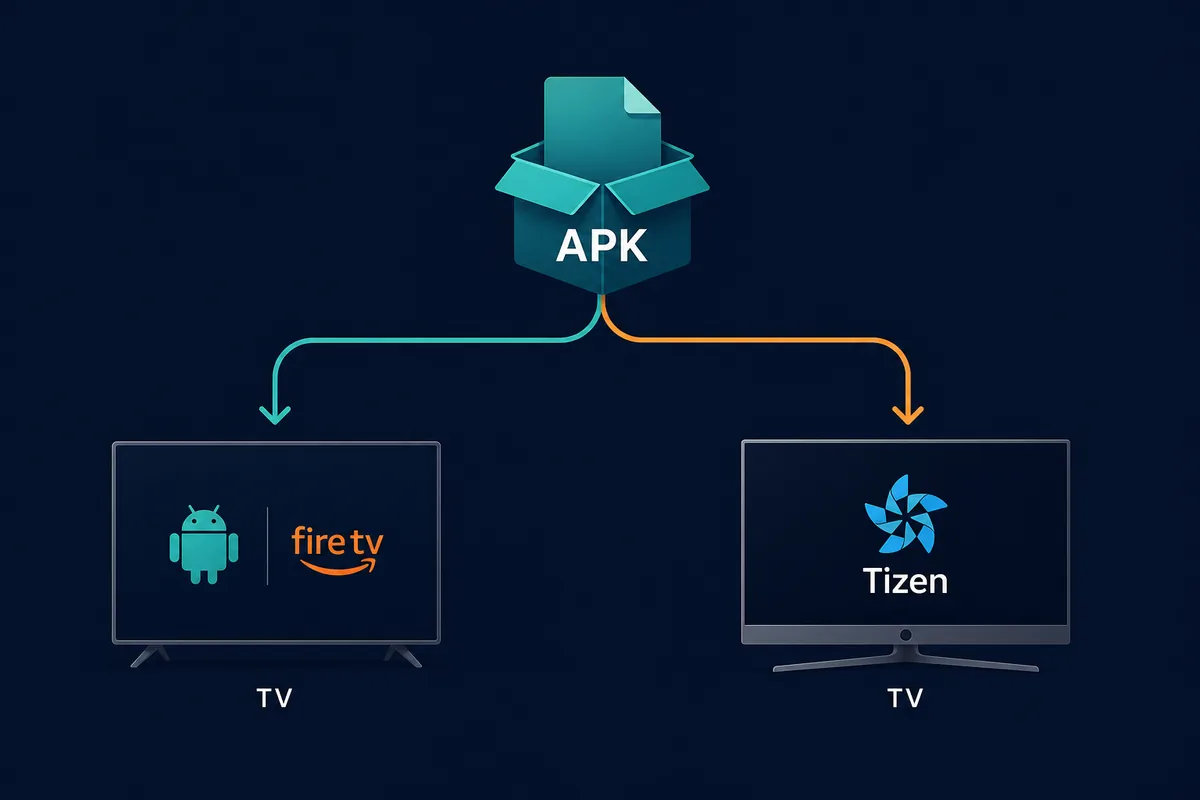
The Fire TV route is a source check, a permission-limited sideload, and a remote-control test after the first launch.
Quick answer
Fire TV can run some Android APK packages, but the name alone is not a guarantee. Check the official release, choose the correct ARM asset, use Downloader or an inspectable local transfer, limit the source permission, and test remote navigation. The October 12, 2026 check found v2.0.2 with cobalt-arm.apk and cobalt-arm64.apk.
What this guide covers
- What TizenTube Cobalt Fire TV Searches Actually Need
- Check the Fire TV Model Before Downloading
- Fire TV Installation Workflow: Source, Permission, and Remote
- Verify the v2.0.2 Release Before Sideloading
- Fire TV Remote Tests After Installation
- Troubleshooting: When TizenTube Cobalt Will Not Install on Fire TV
- Official Release Sources and Related TV Guides
- TizenTube Cobalt Fire TV FAQ
What TizenTube Cobalt Fire TV Searches Actually Need
The phrase TizenTube Cobalt Fire TV usually means a Fire OS sideload task, not a generic APK mirror. The answer must name the Fire TV setting, source app, release asset, architecture, and remote checks. A page that only says 'download APK' leaves the failure-prone steps unexplained.
Treat the device as the input. Fire TV and Firestick can accept some Android packages, but a Samsung Tizen TV, LG webOS TV, or Roku device follows a different app model. If the hardware is unknown, stop at identification instead of testing random files.
| Fire TV search | Likely task | Useful answer |
|---|---|---|
| tizentube cobalt fire tv | Fire TV installation | Verify the release, permission source, and remote-control fit |
| tizentube can't install fire tv | Failure recovery | Check architecture, storage, package conflicts, and the source app |
| tizentube firestick | Firestick sideload | Use a full URL or local transfer and keep Downloader permissions narrow |
| tizentube cobalt apk | Broad Android TV lookup | Use the device-specific Fire TV checks before choosing an asset |
| tizentube samsung tv | Samsung Tizen route | Use TizenBrew instructions, not an Android APK |
Check the Fire TV Model Before Downloading
Open the Fire TV device information screen and record the model family, Fire OS version, free storage, and whether the remote responds consistently. Older hardware may install an APK but still struggle with focus, playback, or background memory. The model check prevents you from treating an installer error as proof that the release is fake.
The official v2.0.2 release exposes separate ARM and ARM64 assets. Do not guess which one fits from the filename alone. If the device architecture is unclear, use the device information or the project documentation first; downloading both large files wastes storage and makes troubleshooting less clear.
| Fire TV check | Why it matters | What to record | Stop point |
|---|---|---|---|
| Fire TV Stick | Common Fire OS sideload target | Model, Fire OS, storage | Stop if storage is low or the remote is unreliable |
| Samsung Tizen TV | Not a Fire OS target | Tizen model and project route | Leave this guide and use TizenBrew guidance |
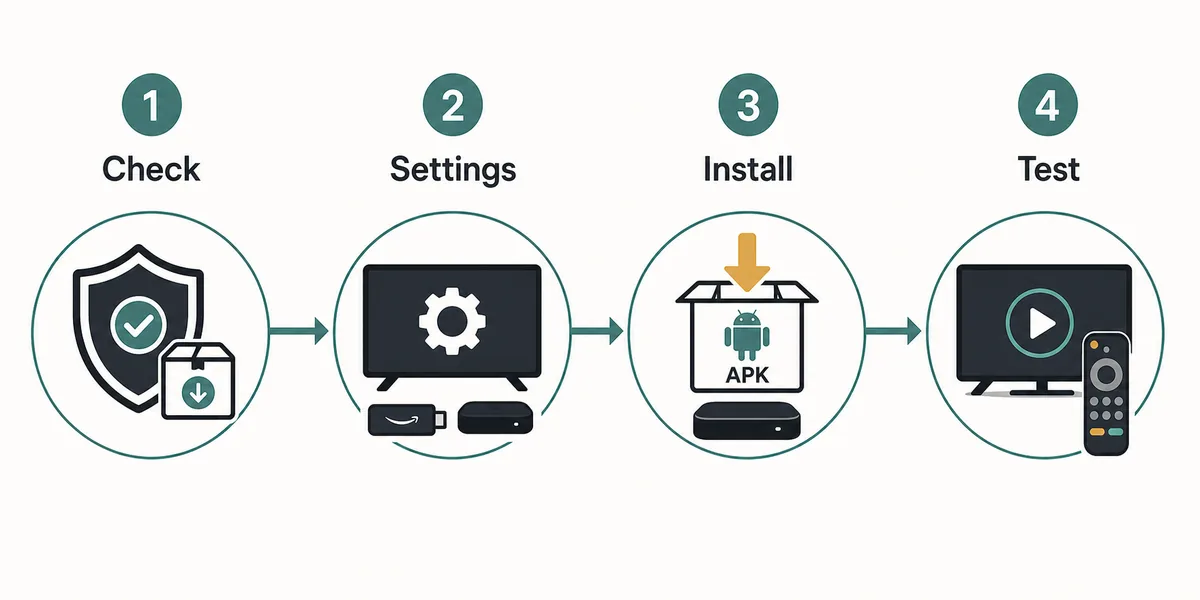
A Fire TV install is complete only after the source, package, permission, launch, and remote-control checks all pass.
Fire TV Installation Workflow: Source, Permission, and Remote
Keep the phone or computer research step separate from the TV installation step. Open the official Cobalt release page, compare v2.0.2 and the ARM asset names, then use a full release URL or local transfer. A shortened Downloader code hides the destination and is not trust evidence.
On Fire TV, permission belongs to the app that opens the APK. Downloader, a file manager, or a browser may each have a separate 'install unknown apps' switch. Enable the switch only for the current source, install once, and turn it off again. A permission prompt that asks for unrelated accessibility, VPN, or device-admin access is a reason to stop.
| State | What you should see | Action |
|---|---|---|
| Before download | Release page, version, architecture, and size agree | Continue only when all four fields match |
| Permission prompt | Only the source app requests install access | Grant once, then plan to revoke it |
| First launch | Home screen responds to the Fire TV remote | Run focus, search, playback, subtitle, and back-button tests |
| After testing | App remains usable after a restart | Record the release and remove installer files |
- Write down the Fire TV model, Fire OS version, free storage, and the release URL before opening Downloader.
- Use the official GitHub release page to choose cobalt-arm.apk or cobalt-arm64.apk; compare the filename and byte size.
- Open Fire TV settings for the current source app, enable installation permission temporarily, and keep other sources disabled.
- Download or transfer the APK, read the package prompt, and cancel if the filename or requested access differs from the release record.
- Launch the app with the remote: move focus, search, open a title, start playback, test subtitles, and return to the home screen.
- Disable the source app's install permission, remove the APK file if storage is tight, and keep the release page as the update reference.
Verify the v2.0.2 Release Before Sideloading
The official GitHub release checked on October 12, 2026 is v2.0.2. It lists cobalt-arm.apk at 97,195,140 bytes and cobalt-arm64.apk at 168,173,905 bytes, both served with an Android APK MIME type. Those facts verify the release assets; they do not prove that every mirror or repack is safe.
Keep the stable release page as the source of truth and prefer its direct asset only after the URL, filename, version, and architecture agree. Never swap in a ZIP, EXE, 'player update', or forced VPN installer because it has the same TizenTube name.
- Confirm the Fire TV model and available storage before downloading.
- Open the official TizenTube Cobalt release page, not a copied download landing page.
- Match the v2.0.2 filename, architecture, and byte size.
- Revoke the current source app's unknown-app permission after testing.
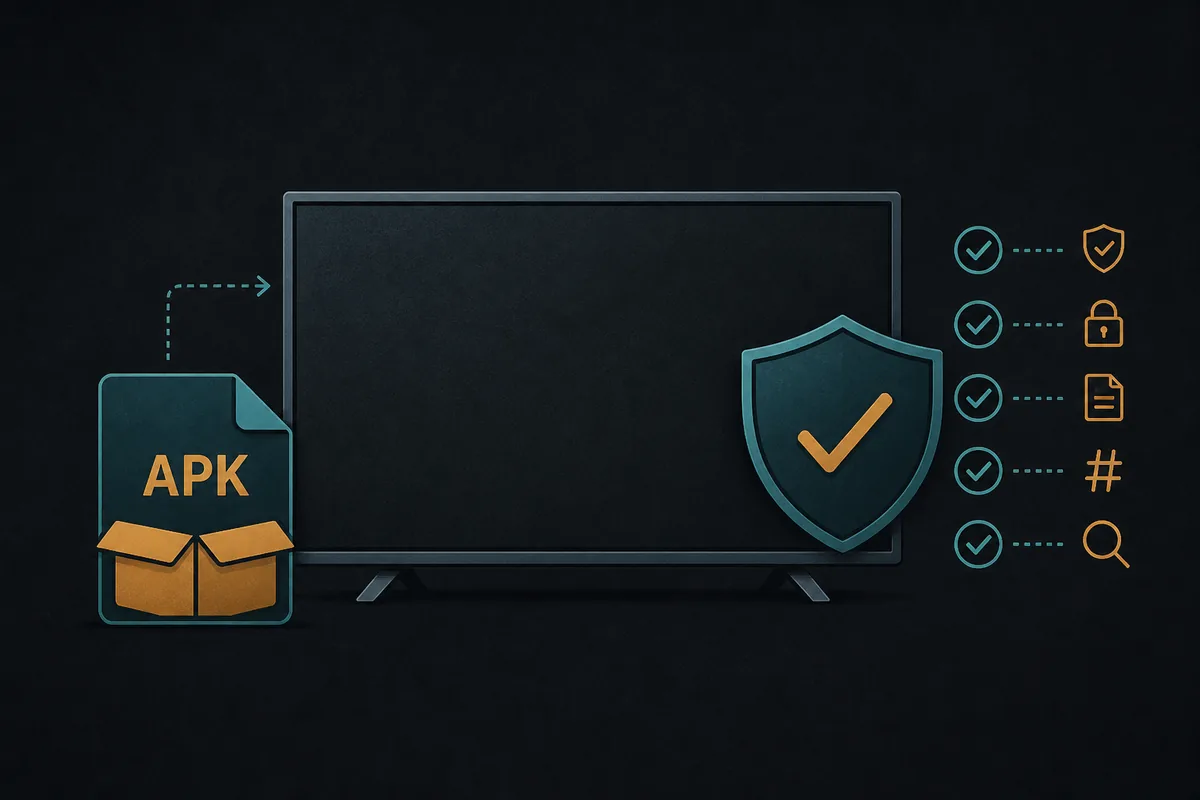
The release page, asset name, byte size, and Fire TV permission scope should agree before installation.
Fire TV Remote Tests After Installation
A successful package install is only the middle of the Fire TV task. The app must expose focusable controls, respond to the directional pad, open a title without a phone pointer, and return cleanly to the home screen. Check playback, subtitles, and restart behavior.
If the app is visible only through Settings > Applications, record that as a launcher limitation. Keep the source, permission, and removal steps clear before trying an update.
- Press every directional key on the Fire TV remote and confirm the focus indicator moves predictably.
- Use search or category navigation without a mouse, touchpad, or phone remote.
- Start a video, change quality if available, open subtitles, pause, resume, and use Back once.
- Close and reopen the app, then check whether the same controls remain reachable after restart.
- If the launcher icon is missing, check Fire TV application settings before downloading another build.
- Remove the installer and revoke source permission only after the test path is recorded.
Troubleshooting: When TizenTube Cobalt Will Not Install on Fire TV
Fire TV failures are easier to diagnose when you change one variable at a time. A parse error can mean an incomplete download or an architecture mismatch; 'app not installed' can mean low storage, a previous package conflict, or an Android API level mismatch. A missing icon can be a launcher limitation rather than a failed installation.
Do not respond to every error by downloading another mirror. Recheck the official release, byte size, Fire OS model, and storage first. If the TV shows an unexplained security or VPN request, remove the package and return to the release page instead of granting broader access.
| Fire TV symptom | Likely cause | Measured next step |
|---|---|---|
| Parse error | Incomplete file or incompatible architecture | Compare the release asset, byte size, and Fire TV model |
| App not installed | Package conflict, low storage, or API mismatch | Remove the old package, free space, and retry once from the verified asset |
| Remote cannot select controls | Phone-first layout or poor focus handling | Treat it as a failed TV fit; do not hide the problem with a mouse |
| Fire TV icon is missing | Sideloaded app is hidden from the launcher | Check Settings > Applications before changing the APK |
| Security or VPN prompt | Untrusted mirror or repack | Stop, uninstall, and return to the official release page |
Official Release Sources and Related TV Guides
Use the official release page for the asset and keep this Fire TV guide separate from Samsung Tizen instructions. Link to the generic Fire TV guide for transfer details and the TizenTube APK guide for the wider platform boundary.
TizenTube Cobalt Fire TV FAQ
Use the same checks for your other TV APKs
The same source, permission, and remote tests help with DeepCine or another Android TV package. Keep Samsung Tizen, LG webOS, and Roku on their native platform routes.
Related TV and APK guides
- DeepCine for Fire TV - Downloader, Firestick permissions, and remote-control tests
- How to Install APK on Fire TV - Generic Fire TV source, transfer, permission, and troubleshooting steps
- TizenTube APK boundary guide - Separates Cobalt Android packages from Samsung Tizen tooling