Concept illustration, not a DeepCine or Roku screenshot. A matching television setup does not establish app compatibility.
Short answer
You cannot install an Android APK directly into Roku OS. This review did not verify an official DeepCine Roku channel. Casting may work only if the DeepCine app exposes Roku-supported casting, and screen mirroring has separate device and app limits. For an Android APK route, connect a compatible Android TV or Fire TV player by HDMI; the APK runs on that external device, not on Roku.
What this guide covers
- DeepCine on Roku: Understand the Platform Boundary
- Check for a Real DeepCine Roku Channel First
- Casting and Screen Mirroring Are Different from Installing DeepCine
- Use a Separate Android Player over HDMI When Appropriate
- Choose a DeepCine Device Route That Matches the App
- Troubleshoot Roku Casting Without Installing Unknown Files
- What This DeepCine on Roku Review Can and Cannot Confirm
- DeepCine on Roku FAQ
DeepCine on Roku: Understand the Platform Boundary
A Roku television combines a display with Roku OS. A Roku streaming stick or player also runs Roku OS, even when it is plugged into a television made by another company. Neither device becomes an Android TV box just because the screen can show Android content from a phone or another HDMI input.
DeepCine APK refers to an Android package. Roku OS does not install Android APK files as native channels, so copying an APK to a USB drive, entering a web address, or using an Android file manager does not create a supported Roku installation. The Roku channel system and Android app system are separate distribution paths.
This review did not verify a first-party DeepCine Roku channel or package. That is an evidence limit, not proof that a future release is impossible. Search the Roku device catalog and compare the publisher before relying on a listing.
| Device or route | What runs the app | What to expect |
|---|---|---|
| Roku TV or Roku player | Roku OS | No direct Android APK installation |
| Android TV or Google TV player | Android-based TV system | APK may be testable if the app and device are compatible |
| External HDMI player | The attached player, not Roku OS | The TV is only the display for that input |
Check for a Real DeepCine Roku Channel First
Before trying a workaround, search the channel catalog on the Roku device itself. Check the exact app name, publisher, support details, and any linked first-party website. A search result, social post, copied logo, or third-party page that says Roku APK is not enough to establish that a Roku channel exists.
If no matching result appears or the publisher is unclear, verify with a first-party source. Do not install an Android file or enter a developer code from an unrelated guide; a matching name alone proves no relationship.
- Search on the Roku device and confirm the publisher identity.
- Compare any listing with a first-party DeepCine source rather than a mirror page.
- Do not download an APK or enter a channel code to force an unverified listing.
Casting and Screen Mirroring Are Different from Installing DeepCine
Casting sends playback from a mobile app that supports casting to a compatible receiver. Roku's support guidance says the matching app must be available on the Roku device, both devices need to be on the same Wi-Fi network, and the cast control may appear only after playback starts. The phone can be used for other tasks once supported casting begins.
Screen mirroring shows the full phone or computer screen instead. Roku describes mirroring support for compatible Android and Windows devices; it is not the same feature as casting, and control stays on the mobile device. The phone must remain powered on, notifications or menus may appear on the TV, and playback can be interrupted when the source app changes behavior.
The image below is a mobile screenshot from this site, not a Roku channel or proof that DeepCine supports casting.
| Method | What appears on TV | Key check |
|---|---|---|
| Casting | Selected playback | The mobile app and Roku must support the same cast route |
| Screen mirroring | The whole mobile screen | The phone must be compatible and remain active |
| APK installation | Nothing on Roku OS | An Android APK is not a Roku channel package |
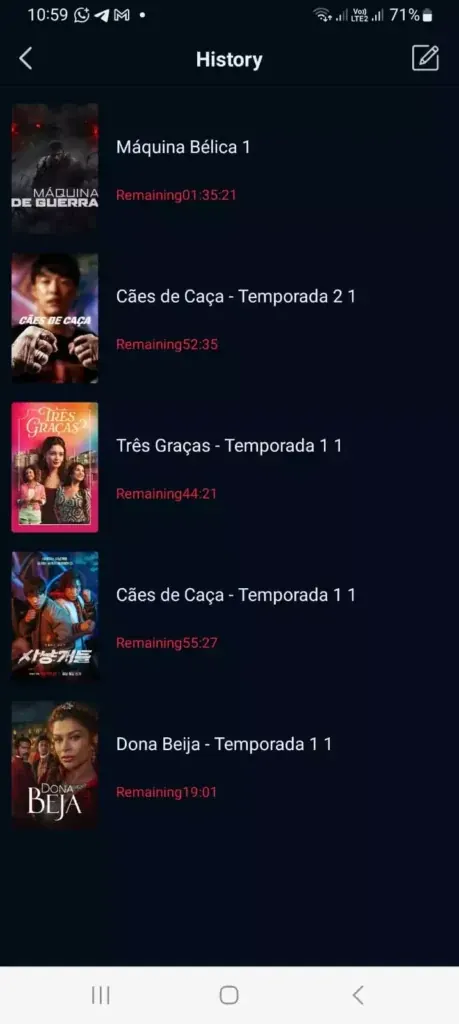
Existing mobile screenshot used by this site. It is not a Roku screen or evidence of DeepCine casting support.
Use a Separate Android Player over HDMI When Appropriate
If your goal is to run an Android APK on the same television, an external Android TV, Google TV, or Fire TV player is a different route. The player connects to an HDMI input and runs its own operating system. The television displays that input; the APK does not run inside Roku OS. Confirm the exact player model and app requirements before choosing this option.
A separate player needs its own remote, network, and maintenance. Check the exact model, Android version, processor, remote navigation, and APK source before buying; an HDMI box does not turn DeepCine into a Roku channel.
- Identify the television's available HDMI input and the external player's operating system.
- Confirm the app package and requirements from a source you can verify.
- Test remote navigation, playback controls, subtitles, and screen fit on the external player.
- Switch back to the Roku input when using Roku channels; keep the two app environments distinct.
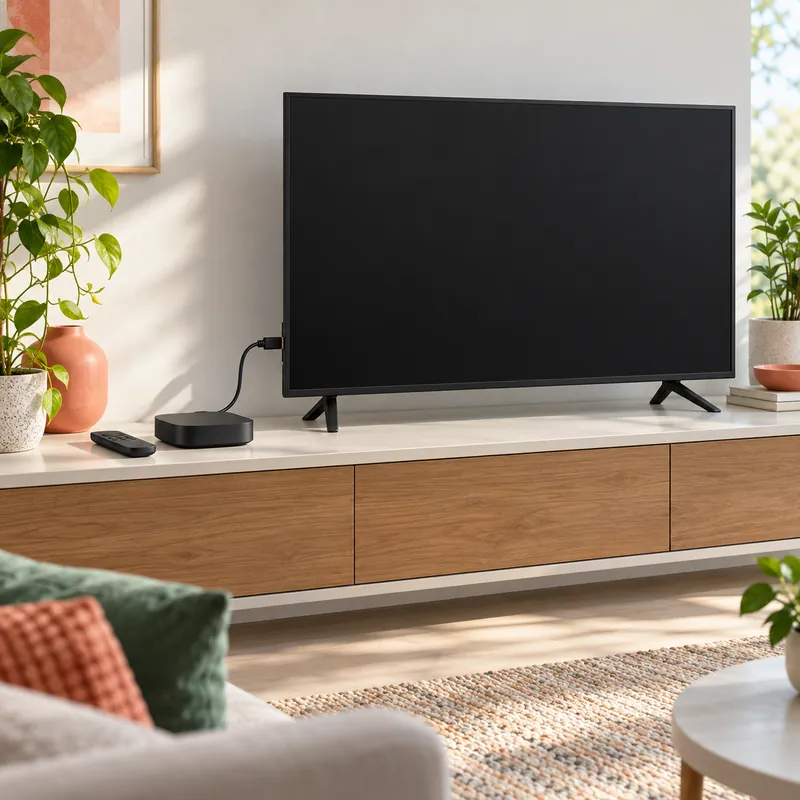
Concept illustration, not a photograph of a verified DeepCine setup. An external player runs its own apps while the TV acts as a display.
Choose a DeepCine Device Route That Matches the App
If you have an Android TV or Google TV device, use the site's Smart TV guide for platform checks, APK-source review, and remote testing. Fire TV has a separate setup guide because its menus and install-permission flow differ. A Windows or Mac computer is another distinct route covered by the PC guide; it uses an Android emulator rather than Roku OS.
iPhone and iPad do not install Android APKs. Use the iOS guide. These device pages do not confirm a Roku channel or guarantee an APK's safety.
| Your device | Relevant next step | Do not assume |
|---|---|---|
| Android TV or Google TV | Check the Smart TV guide | That every APK is TV-ready |
| Fire TV device | Use the Fire TV guide | That Roku OS is running the app |
| Windows or Mac | Review the PC emulator guide | That a native DeepCine desktop installer exists |
| iPhone or iPad | Review the iOS compatibility guide | That an Android APK works on iOS |
Troubleshoot Roku Casting Without Installing Unknown Files
If casting is offered but Roku does not appear, confirm that the phone and Roku are on the same Wi-Fi network, update both apps through their normal channels, start playback, and check whether the cast icon becomes available. Restart both devices only after checking the app's own support notes. Network visibility, device compatibility, and app policy can all affect discovery.
If you are using screen mirroring, check Roku's current device settings and confirm that the phone or computer model is supported. A black screen or blocked video does not prove that an APK is missing; apps may limit mirrored playback. Stop if a workaround asks you to install an unknown Roku file, disable security protections, share account credentials, or pay for a channel code from an unrelated seller.
- No cast icon: confirm the app supports casting before changing Roku settings.
- Roku not listed: check the same Wi-Fi network and the model's current support options.
- Mirrored video is blank: return to the app's supported playback options instead of installing a file.
- Unexpected installer, payment request, or account prompt: stop and verify the source.
What This DeepCine on Roku Review Can and Cannot Confirm
No first-party DeepCine Roku channel, Roku-specific package, or stable installation route was verified. Similar names and third-party claims are insufficient evidence.
Availability can change, so re-check Roku's on-device channel catalog and the publisher's own site before making a new decision. deepcine.blog is an informational guide, not the app developer or Roku channel publisher. It does not guarantee app availability, third-party file safety, or streaming rights. Use lawful content sources and avoid treating concept illustrations as compatibility evidence.
DeepCine on Roku FAQ
Need a supported larger-screen route?
Check the Android-based device guide that matches your hardware. These routes are separate from installing an Android APK on Roku OS.
Related device guides
- DeepCine for Smart TV - Android TV, Google TV, remote control, and APK compatibility checks
- DeepCine for Fire TV - Fire TV setup steps and permission checks
- DeepCine for PC - A separate Android emulator route for Windows and Mac
- DeepCine for iOS - iPhone and iPad compatibility boundaries
- DeepCine app identity guide - Publisher and product identity checks for similarly named listings