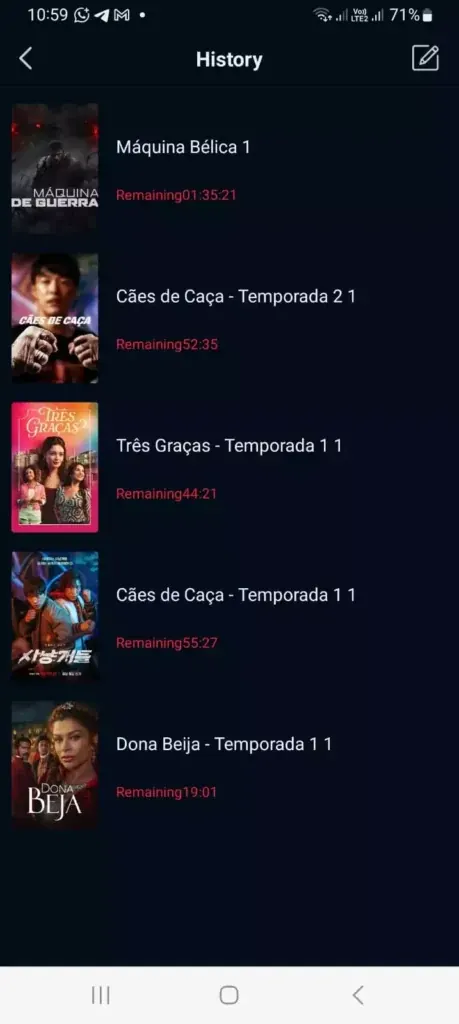
This existing site preview is an editorial context image, not a live status screenshot or proof that a stream is available.
Quick answer
If DeepCine is not working, stop repeated installs and note the exact symptom. First test whether the app opens, then whether a title loads, and finally whether playback stays stable. Verify the source, package name, file size, Android requirement, permissions, network and device route before clearing data or reinstalling. A stable Wi-Fi connection cannot repair a damaged APK, and enabling unknown-app installation cannot make an incompatible package work. If the source keeps changing, adds an unrelated installer, or requests permissions that do not fit the app, remove it and stop.
What this guide covers
- Identify which failure layer is affected
- Check the APK source, package and version record
- Classify app-open, crash and black-screen symptoms
- Diagnose DeepCine buffering without guessing
- Apply phone, TV, Fire TV and PC emulator checks
- Use one controlled recovery sequence
- Know when to stop and protect the device
- DeepCine Not Working FAQ
- References and source limits
Identify which failure layer is affected
The phrase DeepCine not working can describe several different failures. When DeepCine not working appears as a search or support question, start by naming the first failed layer. An app that closes before its home screen needs a launch or package check. A home screen that opens but cannot load a title points toward network, source, account, or server behavior. A title that starts and then buffers is a playback path problem. A black screen with sound can be a renderer or device compatibility problem, while a completely frozen remote on a TV is a focus or layout problem.
Record the device, Android version, app package if visible, exact message, and the step where the failure appears. Reproduce the issue once on the same network and once after a controlled network change. This small record prevents a common mistake: changing the APK, router, permissions, cache, and emulator settings at the same time, then losing the evidence that would identify the cause.
The existing Fire TV, Smart TV, PC and Android APK parse guides cover their own platform tasks. This page starts after the user has an installed app or a playback attempt and needs a cross-device decision path.
| Observed symptom | Check first | Do not assume |
|---|---|---|
| The app will not open or closes immediately | Package identity, Android requirement, storage, and a clean launch | That a higher version number is newer or genuine |
| Home screen opens but titles do not load | Network reachability, source response, date/time, and app status | That reinstalling changes a server-side problem |
| Video keeps buffering | Wi-Fi stability, stream quality, cache, and another title | That every buffer is caused by the phone |
| Black screen or sound-only playback | Renderer, hardware acceleration, screen route, and device support | That a TV brand supports every Android APK |
| Remote or touch controls do not respond | Focus order, landscape layout, input method, and platform guide | That the APK is unusable on every device |
Check the APK source, package and version record
Before troubleshooting DeepCine playback, confirm what was actually installed. The fetched Google Play record for com.deepcine.browser describes a browser and search tool, while public entertainment APK pages use the DeepCine name for a separate listing. A shared brand name is not enough to merge the publisher, package, version, size or permissions. Keep those records separate while you test.
Several public pages repeat a v4.1.0 label and an approximate 55.38 MB size, but the available pages do not establish a verifiable first-party entertainment release trail. Treat those values as dated comparison clues, not as a guarantee of latest, official, safe or compatible. If the file name, package, size or permissions change between the listing and the installer, stop and investigate instead of trying several mirrors.
This check also separates an install problem from a playback problem. If Android cannot read the package, use the dedicated Android APK parse error guide. If the app installs but fails after launch, continue with the symptom and device checks below.
- Write down the source page, final file name, package name, visible version, file size and Android requirement.
- Compare a checksum or exact size only when the same publisher supplies it for that release.
- Reject a download that unexpectedly ends in .html, .zip, .xapk, .apkm or .apks when the source promised one APK.
- Review permissions before the first launch and cancel if an installer asks for unrelated access or an extra desktop program.
- Keep the original source URL so a later update can be compared with the same record.
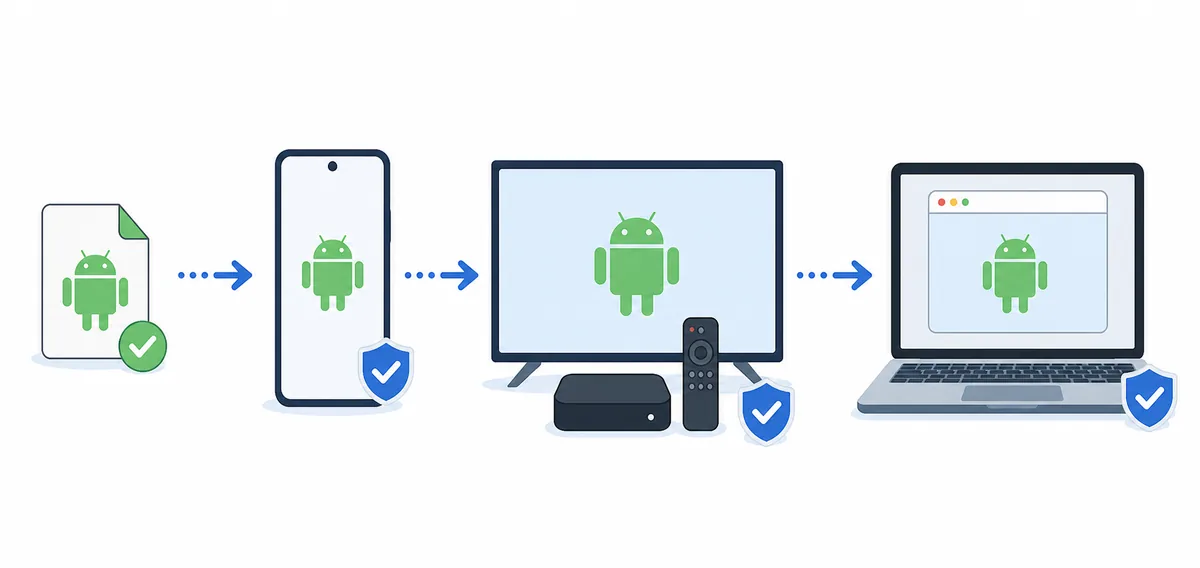
Identify the app record first, then choose the device-specific troubleshooting branch.
Classify app-open, crash and black-screen symptoms
If DeepCine is not working before the home screen appears, restart the device once and check free storage. Then open the app without launching a video. A crash on a fresh launch points to package compatibility, missing native components, an emulator image, storage, or an app-side failure. It is different from a title that opens but fails inside the player.
For a black screen, note whether audio, subtitles, controls or a progress indicator are still visible. Sound with a blank picture suggests a renderer, codec, hardware acceleration or screen-route issue; no sound and no controls suggests the request never reached a usable player state. On a TV, test the same title with the remote and with a second title. On an emulator, test a lower graphics mode only after recording the original setting.
Do not clear every app and system setting at once. A controlled sequence gives you a useful result: close the app, reopen it, test one known title, then compare a second title. If only one title fails, the app may be receiving a bad or unavailable stream rather than failing globally.
| Symptom detail | Useful observation | Next safe step |
|---|---|---|
| Closes before the home screen | Same result after one clean launch | Check package, Android version, storage and source identity |
| Home screen works, one title fails | Other titles or categories load | Compare another title and record the source response |
| Black screen with audio | Controls or subtitles may still appear | Test renderer, hardware mode, screen route and a second title |
| Black screen with no controls | Player never reaches a usable state | Check network, source response, cache and device support |
| App freezes after returning from background | Reopen clears the freeze temporarily | Check memory, battery restrictions and emulator resources |
Diagnose DeepCine buffering without guessing
DeepCine buffering is not a single diagnosis. Streaming needs a stable route from the device to the selected source, enough sustained bandwidth for the chosen quality, and a player that can decode the response. A speed test can look fine while a particular source is slow or unavailable. Compare the same title on Wi-Fi and a permitted alternate connection, then compare a different title on the same network.
Start with the least destructive checks. If DeepCine not working is really a network symptom, move close to the access point, pause other large transfers, confirm the device date and time are automatic, and try a lower quality option if the player exposes one. If every title buffers on one network but not another, the network path is the stronger lead. If one title buffers while others play, do not reinstall the app yet; record the title, time and symptom instead.
Cache clearing can remove stale temporary data but it cannot repair an unavailable stream or an untrusted package. Clear only the app cache first, reopen the app, and test the same controlled example. Use Clear data only when you have recorded any local settings and understand that it may sign you out or remove downloads.
- Test one known title for 60 seconds and write down whether the buffer repeats at the same point.
- Test a second title on the same device and network before changing the APK.
- Pause other downloads, move closer to Wi-Fi, and retry once with a lower stream quality if available.
- Clear the app cache, not all data, and repeat the same title test.
- If only one source or title fails, keep the record and stop treating the device as the only cause.
- If every title fails across two stable networks, continue to package, app status and device compatibility checks.
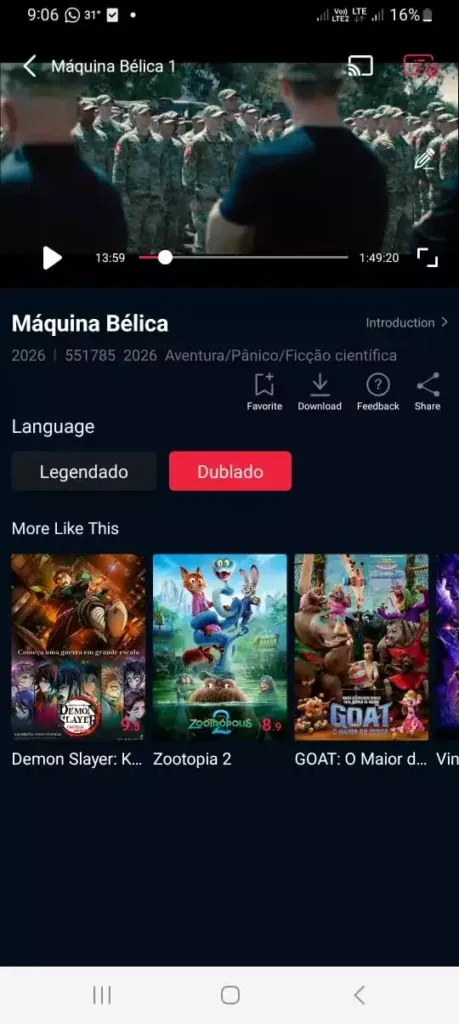
Use a repeatable title and a second comparison title so buffering evidence is meaningful.
Apply phone, TV, Fire TV and PC emulator checks
A device route changes what a failure means. Android phones and tablets expose storage, battery and permission controls. Android TV and TV Box devices add remote focus, landscape layout and limited storage. Fire TV has its own sideloading and input path. A PC emulator adds virtualization, graphics rendering, memory allocation and host-network settings. The same DeepCine playback problem can therefore have different next checks, even when the user describes it simply as DeepCine not working.
Use the dedicated platform guide when the issue is installation or setup. Use this page when the app is already present and the symptom is still unresolved. For an Android TV or Fire TV black screen, test remote focus and a second title before changing graphics settings. For a PC emulator, close heavy host applications, confirm virtualization is available, and change one renderer setting at a time. For a phone, check battery restrictions and free storage before reinstalling.
A platform label is not proof of compatibility. A Smart TV may use Tizen or webOS rather than Android TV; an APK does not install directly on those systems. A Roku device follows a different application model. Stop the APK path and use the matching platform guide when the operating system is not Android-based.
| Platform | Check when playback fails | Related route |
|---|---|---|
| Android phone or tablet | Storage, battery restriction, Android requirement, cache and permissions | Main APK download guide |
| Android TV or TV Box | Remote focus, landscape layout, storage, decoder and second title | DeepCine for Smart TV |
| Fire TV or Firestick | Downloader/source record, remote navigation, cache and reboot | DeepCine for Fire TV |
| Windows or Mac emulator | Virtualization, renderer, allocated memory, host network and APK identity | DeepCine for PC |
| iPhone, Samsung Tizen or Roku | Platform mismatch before any APK test | Use native, browser, casting or platform-specific guidance |
- Android Developers: uses-sdk and compatibility — Official reference for minimum and target SDK declarations.
Use one controlled recovery sequence
Once you have a symptom record, make the smallest change that tests the most likely layer. A clean restart is reversible. A cache clear is usually reversible. Reinstalling an APK is more disruptive and can reintroduce the same source risk. A factory reset, random mirror switch or unknown desktop installer is not a reasonable first response to DeepCine not working.
Keep the source, package, version, device and test title written down. After each step, repeat the same short test and record whether the result changed. If the result improves, stop making changes and keep the working configuration. If the result does not change, move to the next layer instead of repeating the same install.
- Close DeepCine, restart the device or emulator once, and repeat the same title test.
- Confirm network stability, automatic date and time, free storage, and battery restrictions.
- Clear the app cache and test again; keep app data unless you know what will be removed.
- Compare a second title and, where permitted, a second stable network to separate source and device causes.
- Verify package identity, Android requirement, file type and permissions before considering a reinstall.
- Reinstall only the same identified release from a source you can explain; do not cycle through random mirrors.
- If the issue remains across devices or sources, preserve the record and stop rather than disabling security protections.
- Change one variable at a time.
- Keep a note of the exact error and time.
- Remove leftover installers after a verified test.
- Revoke temporary unknown-app permission from the browser or file manager.
Know when to stop and protect the device
Troubleshooting should not turn into permission escalation. Stop when a page changes the package name, redirects through unexplained download steps, supplies an EXE or extension for an Android app, or asks for accessibility, device administrator, contacts or payment details that do not fit the stated task. A playback error is not a reason to install a modified or unlocked package.
If you need support from a known publisher, provide the device model, Android version, package name, visible version, exact message, test title and source URL. Do not share passwords, one-time codes, personal files or remote-control access. If the source cannot answer basic identity questions, use a platform-native app or a different lawful service instead of continuing the APK experiment.
The safest conclusion can be that the app or stream is unavailable. That is a useful result: it prevents a damaged file, a fake installer or a sequence of uncontrolled changes from becoming a larger device problem.
- Do not disable Play Protect or other device protections just to force an unclear package through.
- Do not rename an archive or HTML download to .apk.
- Do not install a helper, VPN, browser extension or desktop executable bundled with an APK claim.
- Stop when source, package, permissions, version and platform fit cannot be checked together.
DeepCine Not Working FAQ
References and source limits
The references below explain Android package and device checks. The page does not verify a current entertainment APK release, host a direct file, or promise that any third-party stream will work.
- Android Developers: uses-sdk — Reference for Android SDK compatibility declarations.
- Google Play: DeepCine — Fetched store record for the separate com.deepcine.browser browser/tools identity; not evidence of an entertainment APK release.
Need a platform-specific next step?
Use the matching guide when the remaining problem is platform setup. Keep the source and package record visible while you compare the result, and do not use an unverified direct download as a shortcut.
Related DeepCine guides
- DeepCine for Fire TV — Fire TV sideloading, remote navigation and platform-specific playback checks.
- DeepCine for Smart TV — Android TV, Google TV and TV Box installation and compatibility boundaries.
- DeepCine for PC — Emulator choice, virtualization, graphics settings and fake desktop installer warnings.
- Android APK parse error guide — Package completeness, split APK formats and install-time parse failures.
- Dated DeepCine version check — Source and version comparison without claiming an unverified latest file.