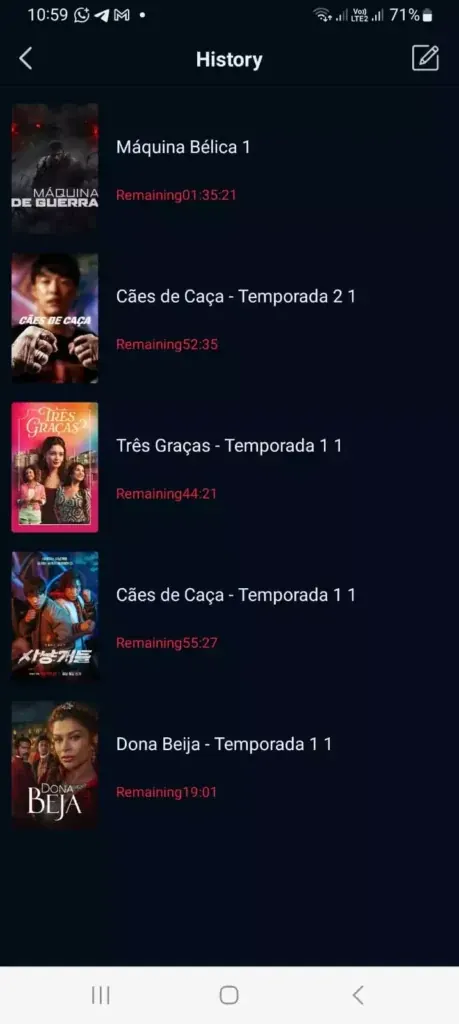
DeepCine can be tested on Android-based TV devices, but the app must still be checked for source, version, permissions, and remote control behavior.
Quick answer
Use the Smart TV route only for Android-based television devices. If the TV runs Samsung Tizen, LG webOS, Roku OS, or another closed platform, do not force an APK; use an external Android TV player instead.
What this guide covers
- Check Smart TV Compatibility First
- DeepCine TV APK vs phone APK: what changes on a big screen
- Prepare the APK, TV, and Security Settings
- Install DeepCine APK on Smart TV with USB
- Use Downloader or a TV Browser When USB Is Not Practical
- Test Remote Control, Playback, and Screen Fit
- Fix Common DeepCine Smart TV Install Problems
- Safety, Privacy, and Legal Notes
- DeepCine for Smart TV FAQ
Check Smart TV Compatibility First
Before downloading anything, confirm what operating system is actually running on your television. The phrase Smart TV is broad: some models use Android TV or Google TV, while others use Tizen, webOS, VIDAA, Roku OS, or a manufacturer-specific platform. DeepCine APK is an Android package, so the important question is not whether the screen is smart, but whether the device can install Android APK files.
If your device has the Google Play Store for Android TV, settings for unknown apps, a file manager, or an Android version page, it is likely a candidate for sideloading. If the TV has only the Samsung App Store, LG Content Store, Roku Channel Store, or a locked cable-box interface, treat it as incompatible for direct APK installation. In that case, the practical route is to connect an Android TV Box or streaming stick to HDMI.
| Device type | DeepCine APK fit | What to check |
|---|---|---|
| Android TV or Google TV | Usually possible | Android version, storage, unknown-app permission, remote navigation |
| Android TV Box | Usually possible | CPU architecture, free storage, file manager, security scan |
| Fire TV style device | Possible with sideloading | Downloader permission, APK compatibility, remote focus |
| Samsung Tizen or LG webOS | Not direct | Use an external Android player instead of installing the APK |
| Roku TV | Not direct | Android APK files are not Roku channels |
DeepCine TV APK vs phone APK: what changes on a big screen
The APK file may be similar, but the success criteria are different on a television. TV installation depends on remote focus, landscape layout, launcher visibility, storage, and reachable playback controls.
This guide keeps the TV keyword boundary separate from the main APK download page. The goal is to decide whether the existing APK can be tested responsibly on Android TV, Google TV, TV Box, or Fire TV style hardware.
| Check | Phone install | TV install |
|---|---|---|
| Input | Touch screen | Remote D-pad focus |
| Layout | Portrait or flexible | Landscape readable from couch |
| Launch | App drawer icon | TV launcher or sideload launcher |
| Playback | Phone controls | Remote-accessible play, pause, subtitles |
| Storage | Personal device storage | Limited TV or box storage |
Prepare the APK, TV, and Security Settings
Treat preparation as part of the install, not as an optional step. Check the DeepCine APK name, version, approximate file size, Android requirement, and update date before copying it to your television. A file that uses a strange name, requests unrelated permissions, or differs heavily from the expected size should be rejected before it reaches the TV.
Keep the unknown-app permission narrow. On modern Android and Google TV devices, the permission is usually granted per source app, such as a browser, Downloader, or file manager. Allow that source only while installing, then turn the permission off again. Google Play Protect may also warn about apps installed outside Google Play; use that warning as a reason to slow down and recheck the source.
Before moving any DeepCine APK to a TV, confirm that the device runs Android TV, Google TV, Fire TV, or another Android-based system. No verifiable first-party release page was found on July 10, 2026, so compare version, size, package details, and permissions before sideloading.
- Confirm that the TV or box is Android-based and has enough free storage.
- Use a known APK file name and compare the listed version before installing.
- Scan the APK on the phone or computer that downloaded it.
- Enable unknown-app installation only for the source app you are using.
- Keep the original APK copy until you confirm the TV install opens correctly.
Install DeepCine APK on Smart TV with USB
The USB method is the cleanest option when you prefer downloading on a phone or computer and moving the file to the television manually. It also makes verification easier because you can scan the APK before it ever touches the TV. Use a simple USB drive formatted in a way your TV can read, then copy only the APK file you plan to install.
After connecting the USB drive, open the TV file manager and browse to the APK. If Android blocks the install, it should show the settings page for the file manager source. Grant permission, complete the installation, then revoke the permission once DeepCine has been tested.
- Download the DeepCine APK on a device where you can inspect the file name, version, and size.
- Copy the APK to a USB drive and safely eject the drive.
- Connect the USB drive to the Android TV, Google TV, or TV Box.
- Open a trusted file manager and select the APK file.
- Allow installation from that file manager only if Android asks for permission.
- Install DeepCine, open it once, then disable the unknown-app permission again.
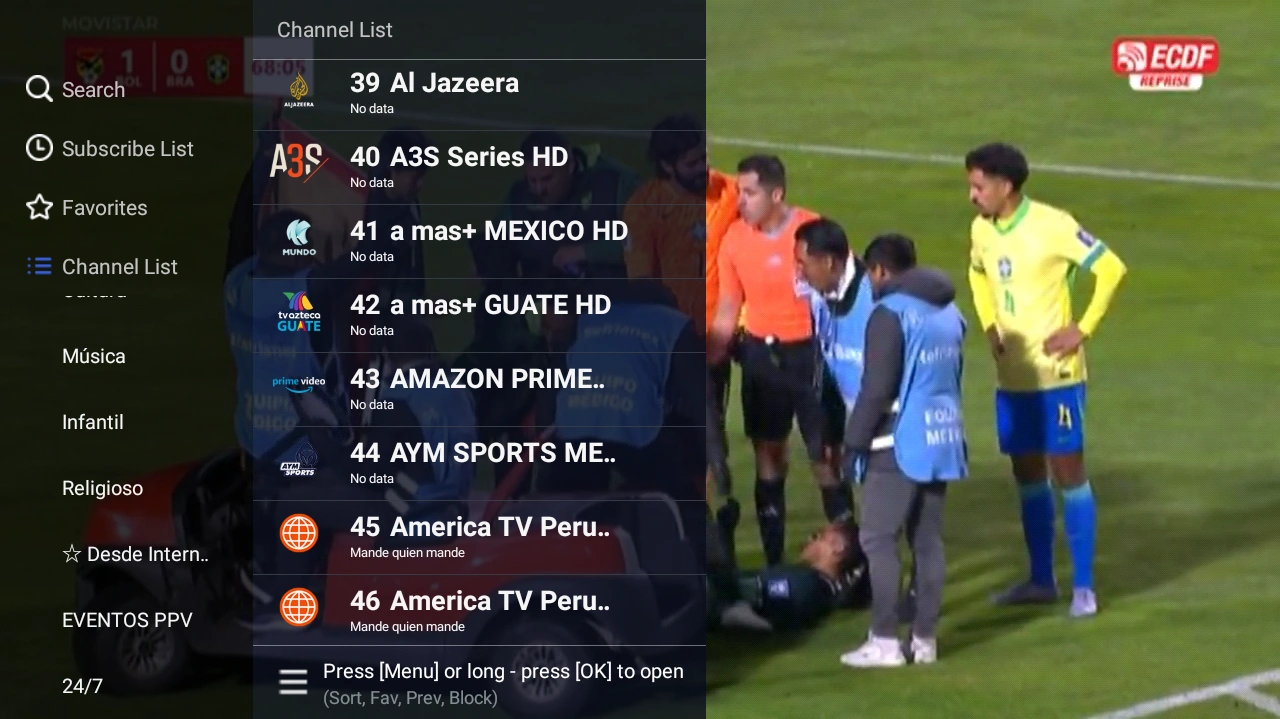
After installation, test directional focus, back behavior, and menu readability from the couch.
Use Downloader or a TV Browser When USB Is Not Practical
Some streaming sticks and TV boxes make USB transfer inconvenient. In that case, a TV browser or Downloader-style app can fetch the APK directly on the device. This is faster, but it also increases risk because typing short links on a remote can lead to mistakes or untrusted mirrors.
Use this method only if you can verify the page and file before installation. Avoid shortened links that hide the destination. When the download finishes, Android may ask you to allow the downloader app to install unknown apps. Grant the permission only for the installation session, then remove it from settings.
- Use the full URL when possible instead of a shortened code.
- Do not install from pop-up ads or mirror buttons that change the file name.
- Check the downloaded file details before pressing Install.
- Remove the downloader app permission after DeepCine is installed.
- If the installer shows a package parse error, try a verified APK version rather than repeated random mirrors.
Test Remote Control, Playback, and Screen Fit
A phone APK can install on a TV and still be frustrating to use. The key test is remote focus: you should be able to move through menus with the directional pad, open a title, start playback, pause, go back, and reach settings without needing a mouse pointer. If important buttons cannot be selected, the app is not a good Smart TV fit even if it technically opens.
Also test screen fit. Some Android apps assume portrait phone dimensions and may crop menus on a wide TV. DeepCine-style streaming layouts usually work better when they expose rows, categories, and large artwork, but you should still test subtitles, playback controls, quality menus, and back-button behavior before relying on the setup.
| Test | Pass condition | Why it matters |
|---|---|---|
| Remote focus | Every main button can be reached with the D-pad | TV use should not require a mouse |
| Playback controls | Play, pause, quality, subtitles, and back all respond | Streaming fails if controls are trapped |
| Screen fit | Menus and text are visible without cropping | Phone layouts can break on TV screens |
| Storage | The app opens after a reboot and cache does not fill storage | Low storage causes crashes and failed updates |
| Network | Streams load on the TV network without repeated buffering | TV Wi-Fi is often weaker than phone Wi-Fi |
Fix Common DeepCine Smart TV Install Problems
Most failed Smart TV APK installs come from one of five causes: the TV is not Android-based, the APK requires a newer Android version, the CPU architecture is not supported, the file is incomplete, or unknown-app permission was granted to the wrong source app. Start with those checks before searching for another download.
If DeepCine installs but does not appear on the home screen, open the full app list in settings or use an app launcher that shows sideloaded apps. If the app opens to a black screen, clear cache, reboot the TV, and test another display mode. If playback opens but controls are impossible to select, the current APK may be phone-oriented and not suitable for remote-only TV use.
- Package parse error: download the APK again and check Android version compatibility.
- App not installed: remove old copies, free storage, and confirm the APK architecture.
- App missing after install: check Settings > Apps or a sideload launcher.
- Black screen: reboot, clear cache, and test the TV display mode.
- Remote cannot select buttons: use a Bluetooth mouse only as a temporary test, not as the final TV setup.
Safety, Privacy, and Legal Notes
DeepCine APK is commonly searched as a third-party entertainment APK, so installation safety matters more than speed. This site does not develop or control DeepCine, does not guarantee third-party APK files, and does not verify streaming rights for content inside any app. Your safest approach is to use lawful content sources, inspect permissions, and avoid modified files that promise unrealistic benefits.
For Android TV security, keep Google Play Protect enabled where available and review warnings about unknown apps. Google explains that Play Protect can help check apps on Android TV, especially when apps come from outside Google Play. Use official device settings, not a random on-page script or APK installer, to control unknown-source permissions.
- Do not leave unknown-app installation enabled after setup.
- Reject APK files that ask for unrelated permissions or device administrator access.
- Avoid mirrors that bundle extra installers, VPN prompts, or browser extensions.
- Use content sources that are legal in your location.
- Review Google Android TV Play Protect guidance if your device shows a warning.
DeepCine for Smart TV FAQ
Need the APK version details first?
Start with the DeepCine APK homepage to review the current version listing, file size notes, Android requirement, screenshots, and general download safety checklist before moving the file to your TV.
Back to DeepCine APK download guideRelated DeepCine install routes
- DeepCine APK download guide - Version, file size, screenshots, and Android install safety
- DeepCine PC emulator guide - Windows or Mac emulator setup and fake installer checks
- DeepCine for iOS - iPhone and iPad compatibility boundaries for APK searches
- DeepCine Alternatives - Compare APK, TV Box, iPhone, Samsung TV, and legal streaming choices
- TizenTube APK guide - Clarifies Android TV APK, Fire TV, and Samsung Tizen route boundaries