TizenBrew Apps: What You Can Install on a Samsung Tizen TV
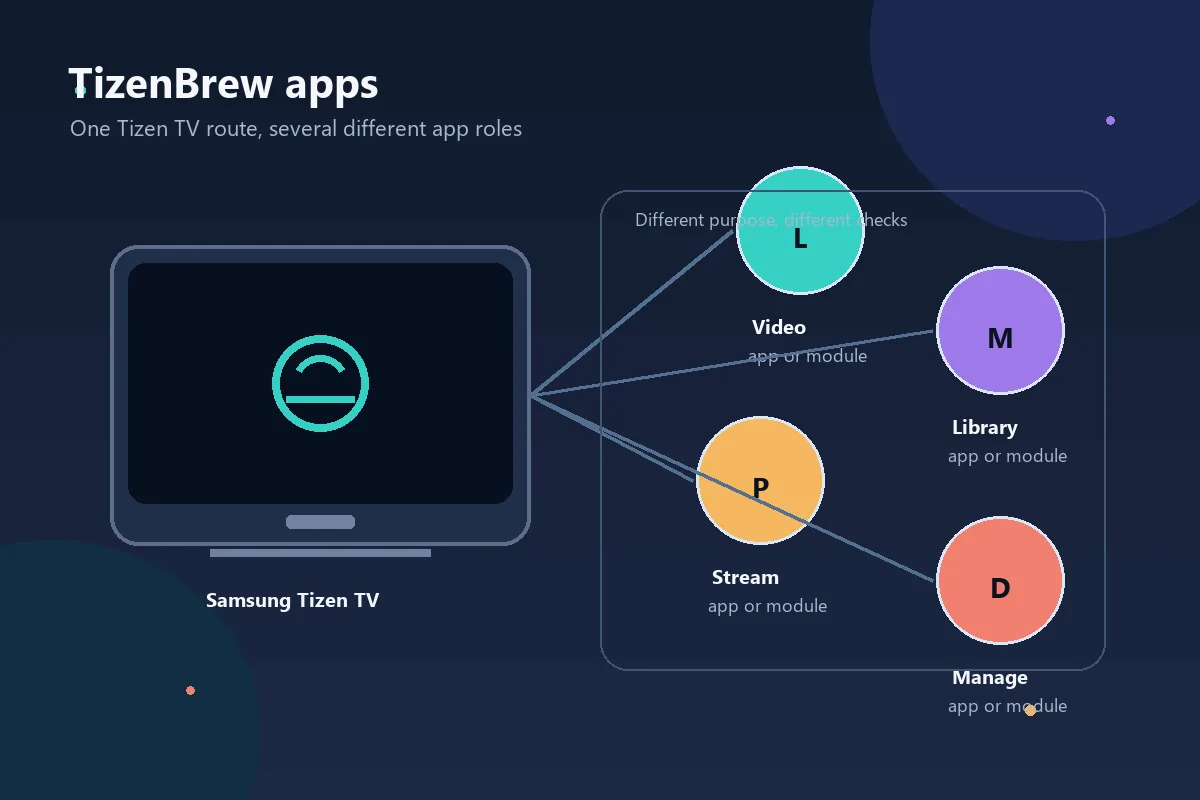
Editorial illustration of TizenBrew app roles; it is not an official Samsung screen or a real package screenshot.
Quick answer
TizenBrew apps are Tizen-focused community packages or modules, not ordinary Android APK files. Start with the official repository, confirm TV and network prerequisites, and add one documented package at a time. Record its source, release context, permissions, launch method, and removal path. For an APK, use an Android TV, Google TV, Fire TV, or TV Box route instead.
What this guide covers
- What TizenBrew Apps Means
- App, Module, or Modification: Do Not Treat Them as the Same
- Examples, Device Manager, and Package Expectations
- Check the Source, Release, and Permissions Before Installation
- A Safer Way to Test TizenBrew Apps
- TizenBrew Apps vs Android APK Files
- Troubleshooting TizenBrew Apps After Setup
- When an Android TV or Fire TV Device Is Better
- TizenBrew Apps FAQ
What TizenBrew Apps Means
TizenBrew is a community project associated with Samsung Tizen televisions. When people search for TizenBrew apps, they may be looking for a launcher item, a service, a media extension, or a companion module rather than a single universal app store. The exact package list and supported firmware can change, so the repository, wiki, release notes, and issue tracker are more reliable than a mirror that simply repeats the project name.
The phrase also has a device boundary. Samsung Tizen is its own platform, while Android TV, Google TV, Fire TV, and Android TV Boxes use Android package formats. A normal APK tutorial cannot be copied onto a Samsung Tizen TV. First decide which operating system is on the screen, then follow the matching project and package instructions.
Evaluate each result by asking what it does, who maintains it, how it launches, and how it can be removed. A download link alone does not show that the package fits your television.
| Search phrase | Likely meaning | First check |
|---|---|---|
| TizenBrew apps | A group of Tizen packages or modules | Official package notes and target device |
| TizenBrew device manager | A discovery or management workflow | Current documentation and connection method |
| TizenBrew modules | Add-ons that may not create a home-screen tile | Launch behavior and dependencies |
| TizenBrew Samsung TV | The platform and compatibility question | TV model, Tizen release, and network |
App, Module, or Modification: Do Not Treat Them as the Same
An app normally has a user-facing purpose, such as playing media or opening a service. A module may provide a background function, a compatibility layer, or a companion feature and may be started through another workflow. A modification changes behavior or configuration around the TV or project. These categories can overlap, but the distinction matters when you troubleshoot a missing icon or plan a rollback.
Project notes may discuss TizenTube, Jellyfin, Moonlight, or a device-management flow. Treat these as project-specific examples, not a promise that every model supports every item.
| Type | What you may see | Common mistake |
|---|---|---|
| App | A launchable user feature | Expecting every app to use the same installer |
| Module | A helper, service, or companion component | Assuming it must appear as a tile |
| Modification | A change to settings or behavior | Forgetting how to undo it |
Examples, Device Manager, and Package Expectations
The most useful TizenBrew apps guide is not a long unverified list. It explains what a package is for, which device family it targets, what it needs from the network, and whether it is maintained. A device manager or discovery tool can be especially sensitive to guest Wi-Fi, VPN routing, and router isolation because the TV and setup device may need to see each other locally.
Record the exact name and repository URL, then check whether the item is a foreground app, service, or companion flow. This prevents repeated reinstalls when the real issue is that no home-screen icon is expected.
- Write down the package name and its source repository.
- Confirm the target is Samsung Tizen, not Android TV or Fire TV.
- Check whether it is an app, service, module, or companion tool.
- Use a private network when local discovery is required.
- Test one package before adding another.
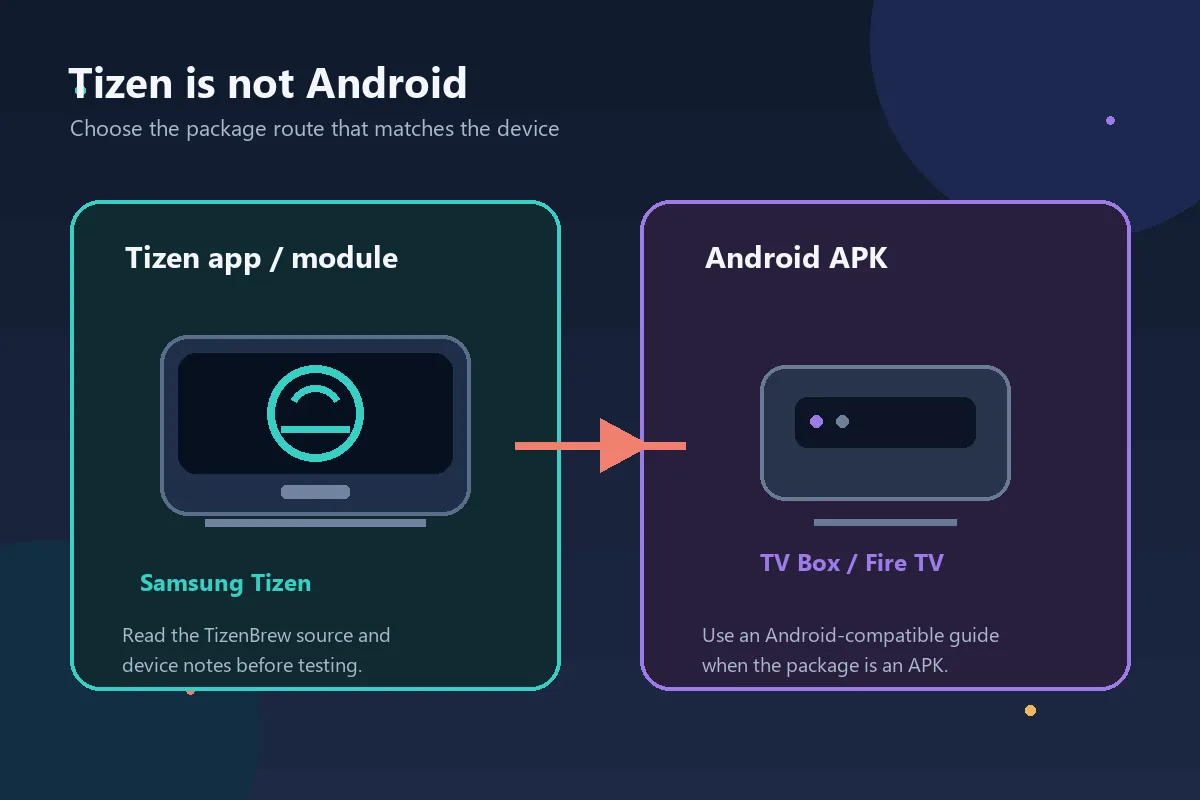
Platform-boundary illustration: Tizen app/module workflows and Android APK workflows should be evaluated separately.
Check the Source, Release, and Permissions Before Installation
Use the official TizenBrew repository and the documentation linked from it as your starting point. In the source check for this page on September 8, 2026, the repository and release context showed v2.0.5, while the installer release context showed v1.1.3. Those are dated observations, not a claim that they remain the newest versions. Open the current release page yourself before changing a TV, and do not copy a direct file URL from an unrelated mirror.
A trustworthy package trail identifies the maintainer, target device, release context, permissions, and removal method. Be cautious when a download page hides the repository, bundles unrelated files, uses a shortened link, or says latest without a date.
If a package asks for a Samsung password, payment detail, or unrelated credential, stop. A clean install also says nothing about copyright or local service terms; technical access and lawful use are separate decisions.
- Official TizenBrew repository on GitHub
- Official TizenBrew Getting Started documentation
- Official TizenTube project for the separate Android/Tizen context
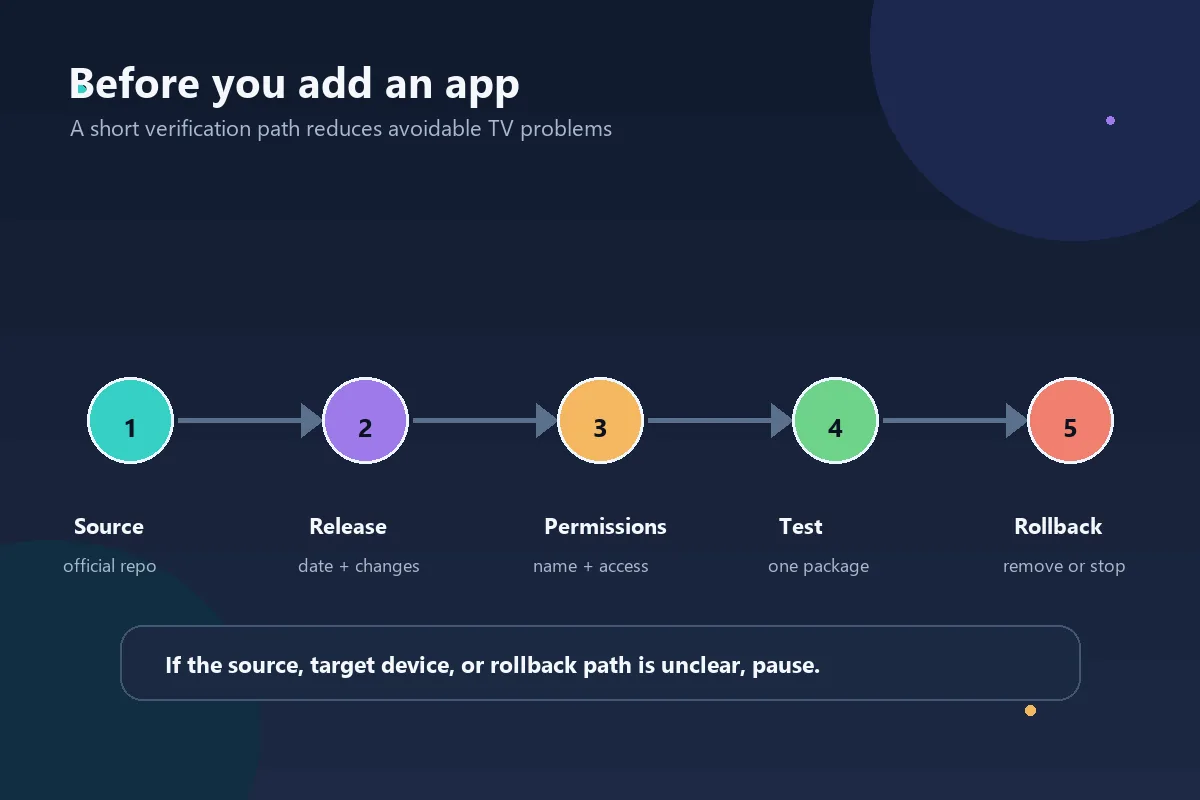
Source-check flow used as an editorial explanation, not a screenshot of the TizenBrew interface.
A Safer Way to Test TizenBrew Apps
Use the current project instructions as the authority for commands. The workflow below is a decision sequence that limits variables; it is not a frozen installer script. If the official documentation changes, follow the newer prerequisite or removal step.
Record every setting you change so a failed first test can return to a known state.
- Open the official repository, wiki, and relevant release notes.
- Record the TV model, Tizen version, region, and current network setup.
- Prepare only the computer, browser, developer option, or companion tool named by the documentation.
- Use the required private network and confirm that the TV is discovered.
- Add one clearly documented package and note its launch method.
- Test remote focus, core behavior, restart, and ordinary TV use.
- Remove an unwanted package or temporary setting and keep the rollback note.
TizenBrew Apps vs Android APK Files
The word app does not identify a package format. A Samsung Tizen TV and an Android TV device may both run streaming software, but they do not share the same installation path. TizenBrew belongs to the Tizen side of the decision; APK files belong to Android-based devices.
Search results can mention TizenBrew, TizenTube, and APK together even though they describe different routes. Follow the package instructions for the operating system in front of you; do not enable Android settings on Tizen.
If your goal is APK compatibility, an Android TV, Google TV, Fire TV, or Android TV Box is usually easier to test and undo. Use the site’s TizenTube and Fire TV guides for those routes.
| Question | Samsung Tizen route | Android route |
|---|---|---|
| Package model | Tizen app, module, or project workflow | Android APK or store package |
| Best source | TizenBrew repository and wiki | Platform-appropriate official source |
| Rollback | Project and TV setting notes | Remove the app or reset its device |
Troubleshooting TizenBrew Apps After Setup
If the TV is not discovered, check the network before downloading another installer. Confirm that the TV and setup device are on the same private network, turn off guest isolation, and temporarily remove VPN routing. A reboot can clear stale discovery state, but it cannot make an unsupported firmware version compatible.
If a package installs but no icon appears, read whether it is a service, module, or companion flow. Check the launch method in the current notes and do not reinstall repeatedly. If the remote is awkward, the package depends on a keyboard, or the TV behaves differently after a restart, stop and record the symptom before making another change.
Unexpected ads, credential prompts, a changed home screen, or a repository mismatch are reasons to disconnect and use the documented removal instructions.
| Symptom | Likely cause | Prudent response |
|---|---|---|
| TV not found | Guest Wi-Fi, VPN, or isolation | Use a private network and recheck prerequisites |
| No home-screen icon | Service or module behavior | Read how the item is launched |
| App opens poorly | Wrong target or dependency | Stop, compare notes, and roll back |
| Unexpected prompt or ads | Untrusted package or mirror | Disconnect and return to the source |
When an Android TV or Fire TV Device Is Better
TizenBrew makes sense when you specifically want a Samsung Tizen experiment and are comfortable reading technical documentation. It is not the simplest route for everyone. An external Android TV or Fire TV player adds another device and HDMI input, but it gives APK-based apps a platform that matches their package format.
Choose the route you can explain to other TV users and undo after an update. If the only reason to consider TizenBrew is an Android APK, use an Android-compatible device and leave the Samsung TV unchanged.
- Choose TizenBrew for a documented Tizen workflow.
- Choose Android TV or Fire TV for an Android APK workflow.
- Keep a rollback path before testing either route.
TizenBrew Apps FAQ
Choose the package route that matches your device
Use the TizenBrew guide for Samsung Tizen. For an Android APK, switch to the TizenTube, Smart TV, or Fire TV guidance.
Related device and source guides
- TizenBrew Samsung TV installation guide - Installation and setup steps.
- TizenTube APK guide - Android or Fire TV package route.
- How to install APK on Fire TV - Generic Fire TV APK steps.
- DeepCine alternatives guide - Compare device routes.