TizenBrew Guide: How to Install It on a Samsung Tizen TV
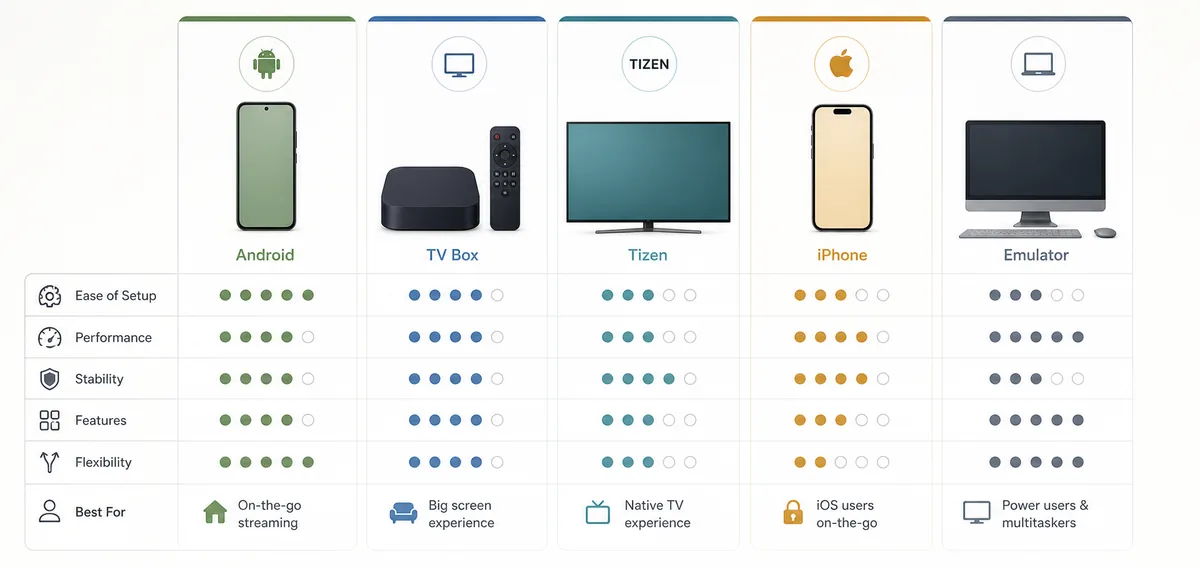
Existing device-route illustration used as an editorial comparison; it is not a TizenBrew screenshot or an official Samsung image.
Quick answer
To use TizenBrew on a Samsung Tizen TV, start with the official repository and Getting Started documentation, confirm your television and network setup, and follow the project’s Tizen steps. Do not substitute an Android APK tutorial. Pause when a connection, device entry, or package looks unfamiliar.
What this guide covers
- What TizenBrew Is and What It Is Not
- Prepare the Samsung TV Before You Install Anything
- How to Install TizenBrew on a Samsung Tizen TV
- Check the Official Source and Release Before Adding an App
- TizenBrew Safety Checks for Packages and Permissions
- Troubleshooting Common TizenBrew Problems
- When an External Android TV Device Is the Better Choice
- TizenBrew FAQ
What TizenBrew Is and What It Is Not
TizenBrew is a community-maintained project built around Samsung Tizen devices. Its goal is to make selected Tizen applications and extensions easier to manage from a television, browser, or companion workflow. The exact capabilities can change as the project, Samsung firmware, and community packages change, so the repository and project wiki are the source of truth for current commands.
The most important boundary is the package format. Samsung Tizen is not Android TV, and a normal .apk file is not a native Tizen application. A web page that tells you to enable Android unknown sources on a Samsung television is describing the wrong platform. TizenBrew is a Tizen-specific route, while APK guides belong on Android TV, Google TV, Fire TV, or an Android TV Box.
| Search or device phrase | What it usually means | Safer next step |
|---|---|---|
| tizenbrew | The project or its documentation | Open the official repository and wiki first |
| tizenbrew samsung tv | Tizen installation and device compatibility | Confirm model, firmware, network, and project prerequisites |
| tizenbrew apps | Packages or community applications | Read the package source and permissions before adding one |
| tizenbrew device manager | A management or discovery workflow | Use only the current project instructions; do not install a random clone |
| tizentube apk | An Android or Fire TV package search | Use the Android route, not TizenBrew, when the device is Android-based |
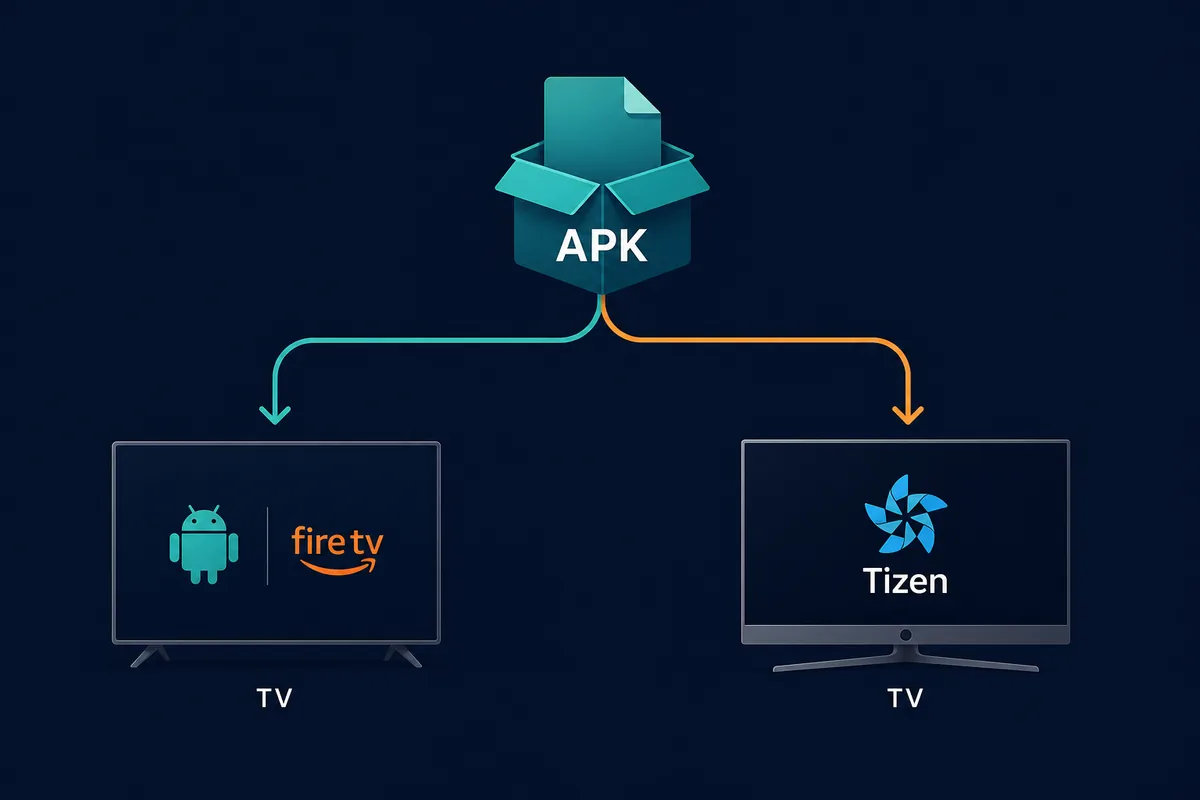
Related platform-boundary illustration: Android and Fire TV APK paths are different from the Samsung Tizen/TizenBrew route.
Prepare the Samsung TV Before You Install Anything
A large part of a successful TizenBrew setup happens before the first command. Write down the exact Samsung TV model, Tizen version, country or region, and network connection. Firmware menus and developer options can differ by model year, and a guide written for another television may expose settings that are not present on yours. Take a photo of the current settings before changing anything so you can reverse the setup later.
Use a stable home network and keep the TV and the computer or phone used for the setup on the same local network when the official instructions require device discovery. Avoid guest Wi-Fi, captive portals, VPN routing, and aggressive router isolation during the first connection. These conditions can make a working project look broken because the devices cannot see each other.
If the project does not support your model, use an external Android TV or Fire TV device connected by HDMI. Trying to force an Android package onto Tizen creates more risk and rarely solves the original problem.
- Record the TV model, Tizen version, region, and current firmware before changing settings.
- Use a private, stable network instead of guest Wi-Fi during discovery or pairing.
- Keep the TV remote available; some setup screens cannot be completed comfortably from a phone.
- Make sure you can undo developer or network changes after testing.
- Decide on an external Android TV or Fire TV fallback before you begin.
- Do not install an APK just because a search result uses the word TizenBrew.
How to Install TizenBrew on a Samsung Tizen TV
The exact TizenBrew commands and package names belong to the official project documentation, so treat the steps below as a safe workflow rather than a frozen command list. The project can change its installer, firmware support, or companion tools. Start at the repository and Getting Started page, then compare every command with the instructions before running it.
Keep the first run small. Do not add several apps, change unrelated router settings, or combine TizenBrew with a random Downloader package. When a step fails, record the message and check the project documentation for that exact symptom.
- Open the official TizenBrew repository and read the current README and Getting Started page.
- Confirm that your Samsung TV model, Tizen release, and network arrangement meet the documented prerequisites.
- Prepare the computer, browser, developer option, or companion tool named by the current project instructions; do not substitute an APK installer.
- Connect the TV and setup device through the same trusted network when the project requires local discovery.
- Follow the project’s one-time setup steps and verify that the TV is identified before adding any extra app.
- Install or enable one clearly documented package, then test launch, remote focus, playback, and restart behavior.
- Record what changed and disable or remove temporary permissions, developer settings, or companion tools that are no longer needed.
Check the Official Source and Release Before Adding an App
The official TizenBrew GitHub repository is the best place to confirm project identity, documentation, issue reports, and release context. At the time of this guide’s source check on September 8, 2026, the repository listed a v2.0.5 release. That fact is a timestamped reference, not a promise that every TV model or package will support it; always open the release page yourself before making a change.
A trustworthy package trail should explain who maintains it, what device family it targets, how it is installed, and how to remove it. Be cautious when a mirror replaces the repository link with a shortened URL, a ZIP, an executable, or a “latest” label without a release date. TizenBrew can be useful while an unrelated mirror can still be unsafe.
TizenBrew Safety Checks for Packages and Permissions
Treat TizenBrew as a technical access layer, not as a safety guarantee for every app made available through it. Before adding a package, compare its name, source repository, maintainer, release date, requested permissions, and stated purpose. If two pages show different package identities, do not assume they are merely translations of the same app.
A family TV deserves a conservative setup. Keep a note of the original state, use a separate test account when the project allows it, and avoid entering payment credentials into an unverified package. If a package shows unexpected ads, asks for a password unrelated to Samsung, changes the home screen, or survives after you try to remove it, stop using it and return to the project’s documented rollback steps.
A clean install is not legal or content approval. Check local rules, service terms, and the origin of content before using a package for regular viewing.
- Use the official repository or a source directly linked from it.
- Record package name, maintainer, version, release date, and permissions.
- Avoid random APK, EXE, ZIP, browser-extension, or VPN bundles.
- Do not reuse a Samsung password or payment detail inside an unverified package.
- Test one package at a time and keep the removal instructions nearby.
- Stop when the package identity, device target, or source changes mid-guide.
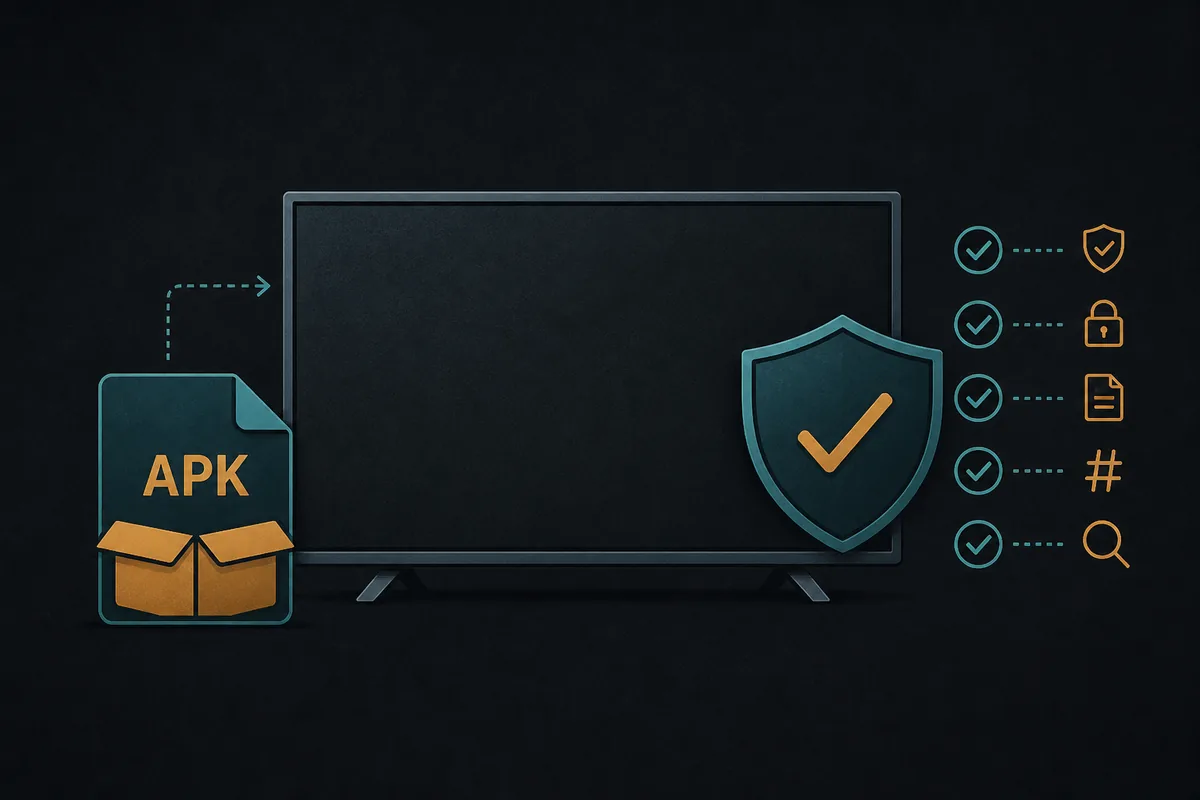
Related safety illustration used to explain source and permission checks; it is not a TizenBrew package screenshot.
Troubleshooting Common TizenBrew Problems
If the TV is not discovered, first check the local network rather than downloading another installer. Confirm that both devices are on the same private network, turn off guest isolation, and temporarily remove VPN routing. Rebooting the TV and the setup computer can clear a stale discovery state, but it will not fix an unsupported firmware version.
If a package installs but does not appear, check whether the project distinguishes a background service, a launcher item, and a companion application. Some tools do not create a normal home-screen tile. Read the current notes before repeating the install.
When an External Android TV Device Is the Better Choice
TizenBrew is useful when you specifically want to experiment with a Samsung Tizen route and are comfortable checking project documentation. It is not the simplest answer for every viewer. If your goal is to install an Android APK, use a Chromecast with Google TV, Android TV Box, or Fire TV device connected over HDMI. Those platforms have a different package model and match the APK guides on this site.
An external player gives you a clearer rollback boundary: remove the app from the Android device without changing the Samsung TV’s system environment. For Samsung-only households, compare maintaining a community Tizen tool with using an official TV app or external player.
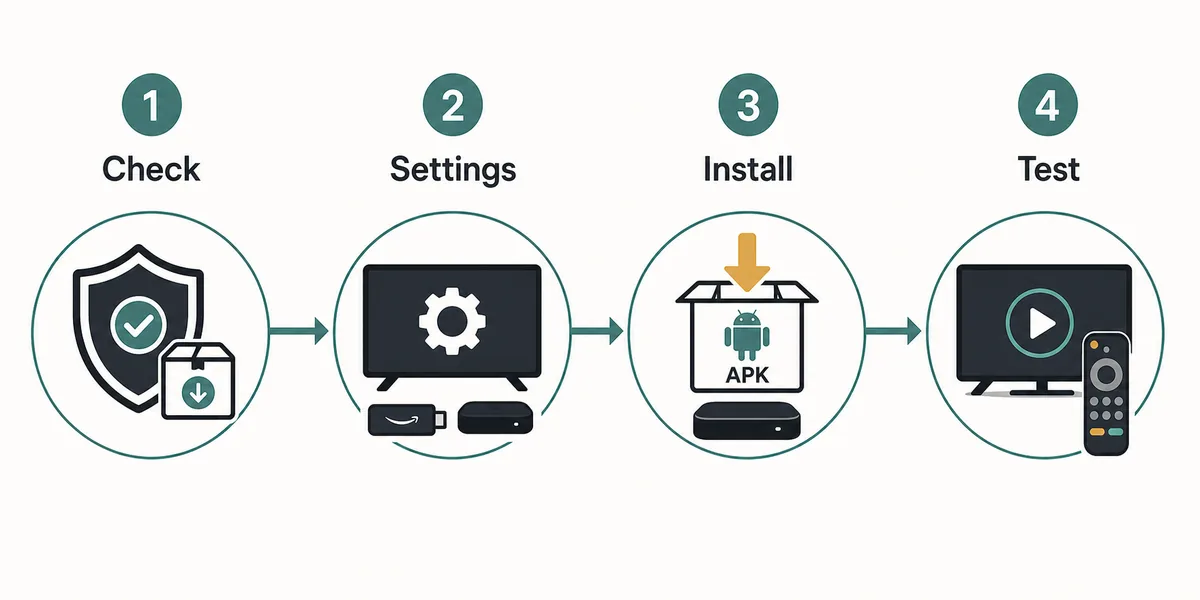
Related Android/Fire TV flow illustration for the fallback route; it does not represent native TizenBrew installation.
TizenBrew FAQ
Choose the device route that matches the package
For Samsung Tizen, keep using the official TizenBrew documentation. For Android TV, Google TV, Fire TV, or an Android TV Box, switch to the TizenTube APK and Smart TV guides instead of mixing package formats.
Related device and source guides
- TizenTube APK guide - Separates Android/Fire TV Cobalt from the Samsung Tizen route.
- DeepCine for Smart TV - Explains Android TV, Google TV, TV Box, and remote-control checks.
- How to install APK on Fire TV - Use this only for Fire TV and Android-style APK workflows.
- DeepCine alternatives - Compares Tizen, Android, iPhone, Roku, and emulator paths.