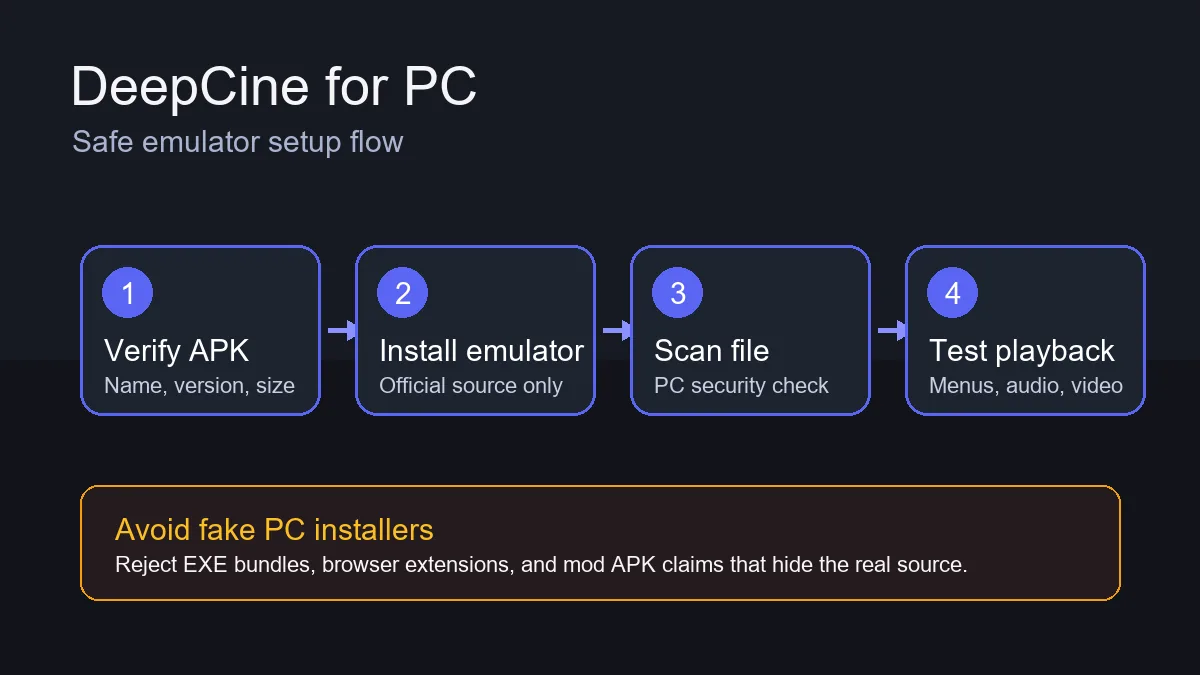
Use a PC emulator workflow only after checking the APK source, emulator settings, account boundaries, and playback behavior.
Quick answer
For PC, keep the keyword boundary narrow: you are testing the Android APK in an emulator, not looking for a native desktop app. Start with a verified APK, install the emulator from its official site, and reject any DeepCine PC download that arrives as EXE, MSI, browser extension, or unlock bundle.
What this guide covers
- When DeepCine for PC Makes Sense
- DeepCine PC download: APK file vs fake desktop installer
- Choose an Emulator Before Downloading the APK
- Install DeepCine APK on PC Step by Step
- Emulator Settings for Smoother Playback
- Fix Common DeepCine PC Problems
- Safety, Privacy, and Legal Notes for PC Users
- DeepCine for PC FAQ
When DeepCine for PC Makes Sense
A PC setup is useful when you want a larger screen, keyboard control, easier file inspection, or testing before moving an APK to a phone or TV Box. It is also helpful when your Android device is low on storage. The tradeoff is that an emulator adds another layer between the app and playback, so graphics drivers, virtualization, CPU resources, and network settings all matter.
Do not treat DeepCine for PC as a separate official desktop app unless you can verify an official publisher and installer. Most search results for Android-only APK apps use "for PC" to mean emulator installation. That distinction matters because fake Windows installers are a common way to bundle adware, extensions, or unrelated software.
| Use case | Best route | Risk to watch |
|---|---|---|
| Watch on a laptop screen | Android emulator with verified APK | Fake EXE installers using the DeepCine name |
| Test APK before phone install | Emulator sandbox plus local antivirus scan | Assuming emulator safety replaces source checks |
| Use keyboard and mouse | Map emulator controls after first launch | Menus designed only for touch screens |
| Mac user | Choose an emulator that supports your chip and macOS version | Old emulators may not support Apple silicon |
| Low-end PC | Use lighter settings and close background apps | Playback stutter or black screen |
DeepCine PC download: APK file vs fake desktop installer
Search results for DeepCine for PC often mix legitimate emulator instructions with misleading desktop download pages. A real Android APK usually ends in .apk and is installed inside the emulator.
If the file is not an APK, do not install it just because it uses the DeepCine name. Keeping the APK boundary clear protects this guide from competing with the main download page.
| File type | Use on PC | Decision |
|---|---|---|
| .apk | Install inside Android emulator | Continue after source and scan checks |
| .exe or .msi | Native Windows installer claim | Reject unless official publisher is verified |
| Browser extension | Not an APK install path | Reject for this guide |
| ZIP or bundle | May hide extra software | Avoid unless you can inspect safely |
Choose an Emulator Before Downloading the APK
Pick the emulator first because system compatibility affects whether the APK can run at all. BlueStacks, LDPlayer, NoxPlayer, and MEmu are common options for Android apps on Windows, while Mac support depends heavily on the emulator version and hardware. Check the official system requirements, Android version, virtualization guidance, and whether the emulator still receives updates.
Keep the emulator account separate from your primary personal accounts when possible. You can test DeepCine APK without syncing sensitive browser data, passwords, or payment details into an emulator profile. If the emulator asks for permissions or bundled offers unrelated to running Android apps, slow down and review the installation choices.
- Use the emulator's official website, not a rehosted installer.
- Confirm Windows, macOS, CPU, RAM, storage, and virtualization requirements.
- Install only the emulator components you need.
- Update graphics drivers before judging playback quality.
- Create a separate emulator profile for APK testing.
Install DeepCine APK on PC Step by Step
Download and verify the APK outside the emulator first. Compare the app name, version, file size, Android requirement, and update date. Scan the file with your PC security tool before dragging it into the emulator. This does not prove the APK is safe, but it filters obvious mismatches before installation.
After installation, open DeepCine once and test basic navigation before signing in anywhere or changing emulator permissions. A clean first-run test should confirm that the app launches, menus render, search works, playback controls respond, and the emulator does not show repeated security warnings.
- Install a reputable Android emulator from its official site.
- Enable virtualization in BIOS or UEFI if the emulator requires it.
- Download DeepCine APK from a source you can verify.
- Check file name, version, file size, and Android requirement.
- Scan the APK with your PC security tool.
- Open the emulator and use its APK install option or drag the APK into the emulator window.
- Launch DeepCine, test menus and playback, then remove the APK file if you no longer need it.

A PC emulator can be a testing environment, but it should still follow the same APK verification rules as phone and TV installs.
Emulator Settings for Smoother Playback
Streaming apps inside emulators are sensitive to graphics mode, allocated memory, display resolution, and network conditions. If DeepCine opens but feels slow, reduce the emulator resolution before increasing CPU or RAM. A lower stable resolution is better than a high setting that causes audio delay, black screens, or overheating.
Use the table as a practical starting point, not a guarantee. Every PC behaves differently. Integrated graphics, outdated drivers, VPN routing, and aggressive antivirus scanning can all affect video playback. Change one setting at a time so you know what fixed or broke the experience.
| Setting | Suggested starting point | Why it matters |
|---|---|---|
| CPU cores | 2 to 4 cores if available | Too little causes lag; too much can starve Windows |
| Memory | 3 to 4 GB for standard use | Low memory can close the app during playback |
| Resolution | 1280x720 or 1600x900 first | Lower resolution reduces stutter on weak PCs |
| Graphics mode | Try DirectX or OpenGL depending on emulator | One mode may fix black screens |
| Network | Stable wired or strong Wi-Fi | Buffering is often network-related, not APK-related |
Fix Common DeepCine PC Problems
Most PC emulator problems fall into predictable categories: the emulator cannot use virtualization, the APK targets a different Android version, the graphics mode conflicts with your driver, or the app interface expects a touch screen. Start with emulator logs and settings before downloading another random APK.
If the app installs but shows a black screen, switch graphics mode, lower resolution, clear app cache, and restart the emulator. If the APK will not install, check Android version and file integrity. If playback loads but controls are awkward, use emulator key mapping only after confirming that the app itself works.
- Package parse error: download the APK again and confirm Android version support.
- Emulator is slow: enable virtualization, close background apps, and lower resolution.
- Black screen: switch graphics renderer and update GPU drivers.
- No sound: check emulator audio output and Windows volume mixer.
- Controls feel wrong: map mouse or keyboard only after basic playback works.
- Repeated warnings: stop and recheck the APK source instead of forcing installation.
Safety, Privacy, and Legal Notes for PC Users
PC users face a specific risk: fake desktop installers. A file named like DeepCine-Setup.exe is not the same as an Android APK. Do not install browser extensions, update helpers, VPN bundles, or "mod unlock" packages just because they appear next to a DeepCine for PC claim. Keep unknown APK testing inside the emulator and keep the Windows host clean.
This website provides installation and safety guidance only. It does not develop DeepCine, does not guarantee third-party APK files, and does not verify streaming rights inside any app. Use lawful content sources, review permissions, and follow your local copyright rules.
- Reject EXE, MSI, extension, or bundled installers claiming to be DeepCine for PC.
- Keep emulator testing separate from your primary browser and password manager.
- Do not grant device administrator or unrelated permissions.
- Remove old APK copies after testing to avoid reinstalling the wrong file.
- Use legal content sources and comply with local law.
DeepCine for PC FAQ
Need the Android or TV path instead?
Start with the main DeepCine APK download guide for Android version details, or use the Smart TV guide if your goal is an Android TV, TV Box, or Fire TV style setup.
Related DeepCine install routes
- DeepCine APK download guide - Version, file size, screenshots, and Android install safety
- DeepCine Smart TV guide - Android TV, Google TV, USB, Downloader, and remote-control checks
- DeepCine for iOS - iPhone and iPad users should not install APK files directly
- DeepCine Alternatives - Compare APK, TV Box, iPhone, Samsung TV, and legal streaming choices